

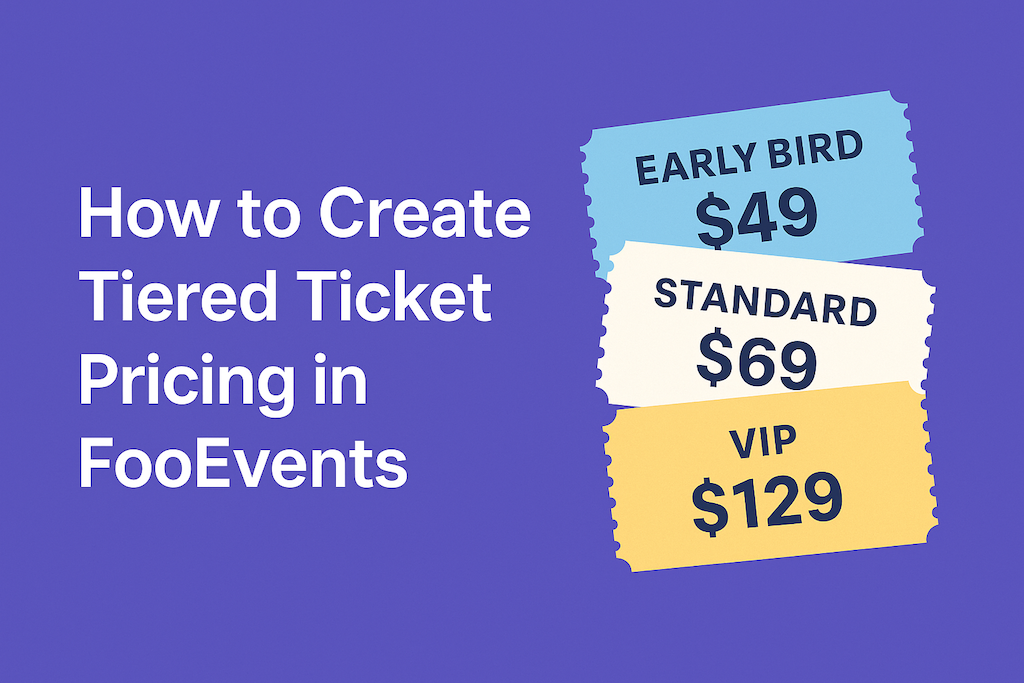
La tarification par niveaux vous permet de proposer différents types de billets (par exemple, Early Bird, Standard et VIP) sans avoir besoin de plugins supplémentaires. Avec FooEvents et WooCommerce, vous pouvez créer des niveaux sous forme de variantes de produits, définir les prix et les stocks par niveau, et collecter les informations des participants par billet. Cet article vous montre comment le configurer et le valider du début à la fin.
Introduction
La plupart des événements ont intérêt à proposer plusieurs options tarifaires. L'option Early Bird récompense les décisions rapides, l'option Standard couvre la majorité des participants et l'option VIP ajoute des avantages premium. Comme FooEvents se superpose à WooCommerce, vous pouvez gérer chaque niveau au sein d'un seul produit événementiel, sans pages en double ni rapports confus. Vous trouverez ci-dessous une configuration pratique que vous pouvez suivre dès aujourd'hui.
Remarque : FooEvents utilise actuellement Classic Checkout par défaut. Si vous testez les blocs WooCommerce Checkout, vérifiez leur comportement sur un site de test avant de passer à la version finale.
Étape 1 : Créer un produit événementiel
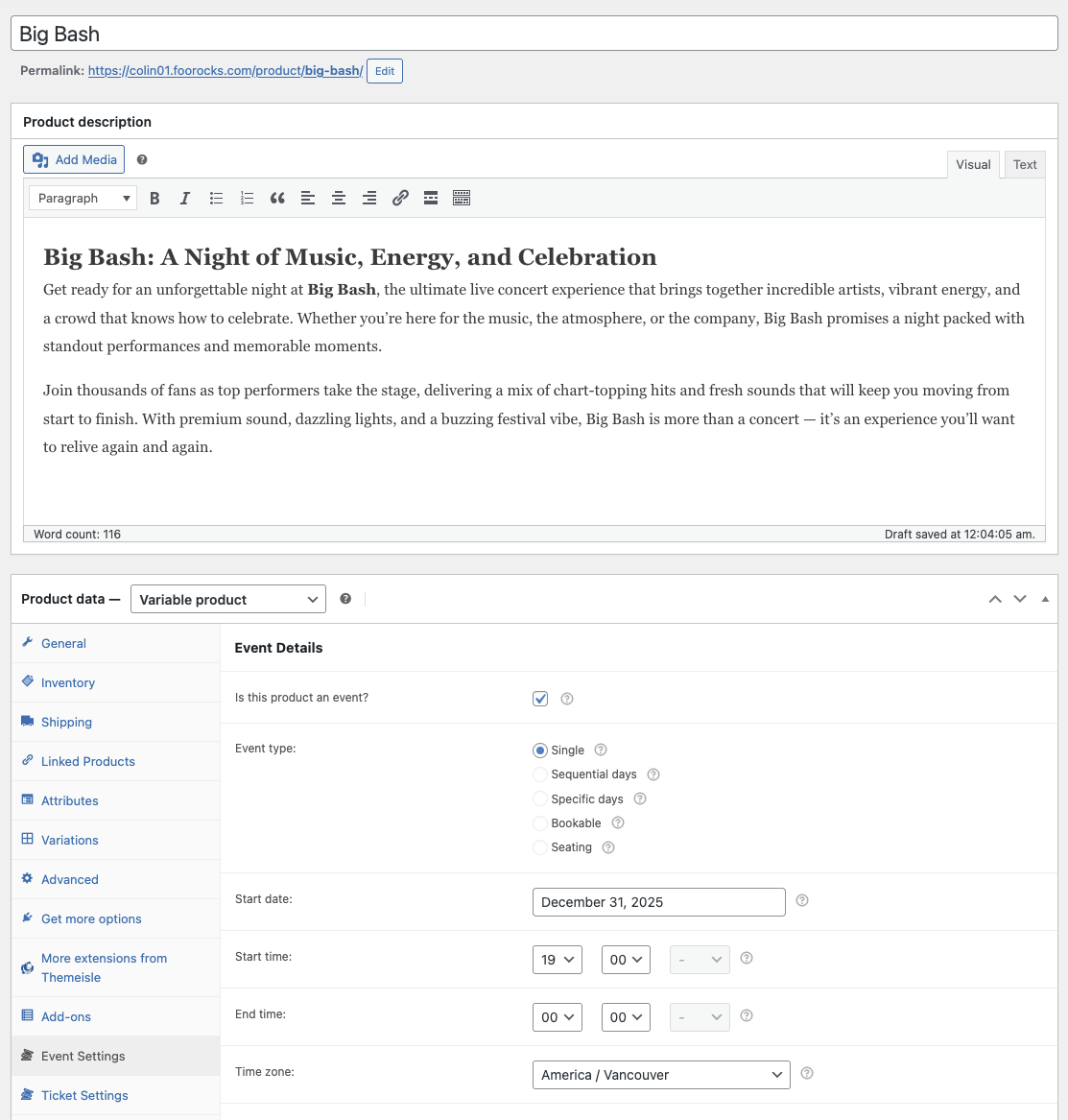
Dans votre tableau de bord d'administration WordPress, rendez-vous dans Produits → Ajouter un nouveau et créez votre produit événementiel.
- Donnez à l'événement un titre et un résumé clairs (date, lieu, points forts).
- Définir Données produit à Produit variable (vous utiliserez des variantes pour les niveaux de prix).
- Dans le cadre de la Paramètres de l'événement panneau, cochez la case Ce produit est-il un événement ? et entrez les détails de l'événement.
👉 Configuration de l'événement (Aide)
Étape 2 : Ajouter un attribut pour “ Type de ticket ”
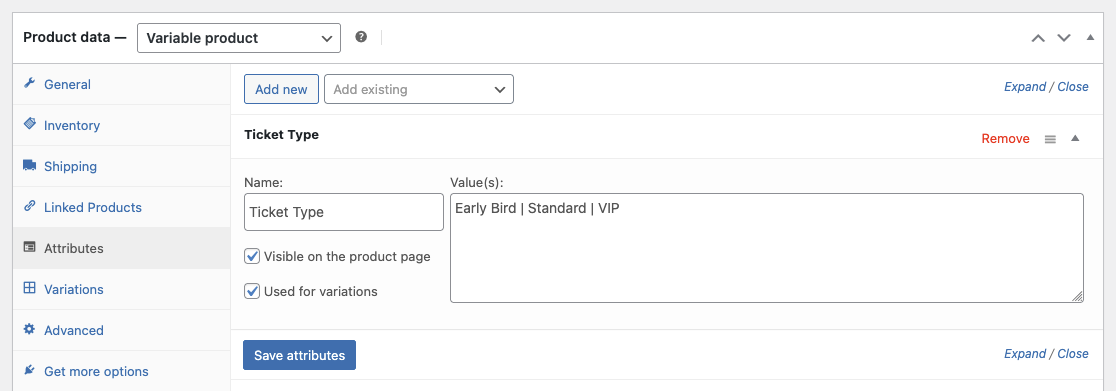
Les attributs définissent les options à partir desquelles vos variations (niveaux) sont construites.
- Dans l'éditeur de produit, ouvrez le fichier Attributs tabulation.
- Créer un nouvel attribut personnalisé appelé Type de billet.
- Entrez des valeurs telles que Lève-tôt | Standard | VIP (séparés par des barres verticales).
- Vérifier Utilisé pour les variations et cliquez Sauvegarder les attributs.
Étape 3 : Générer des variantes et définir les prix/stocks
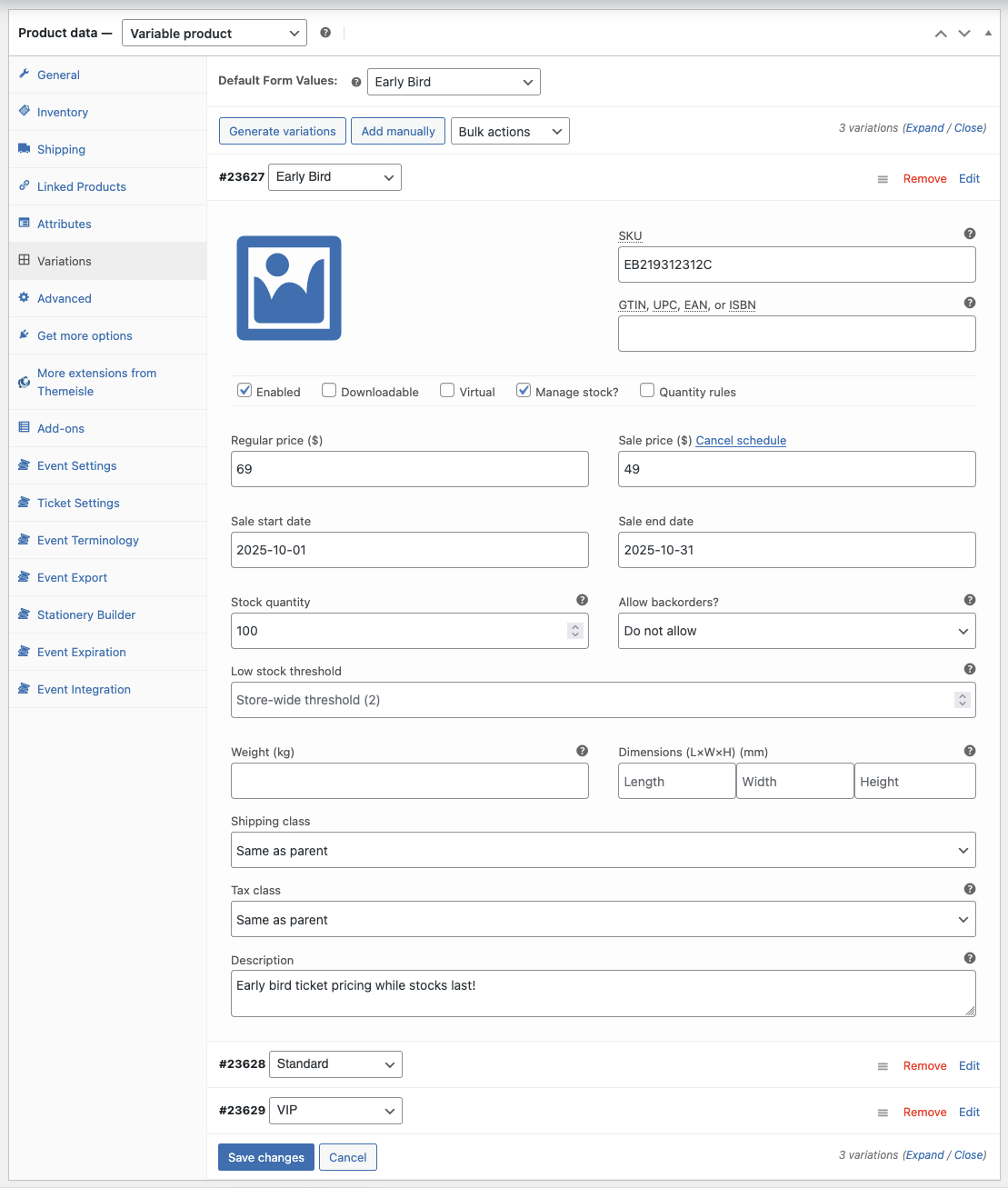
Convertissez maintenant les valeurs des attributs en niveaux d'achat réels.
- Aller à la page Variations onglet et choisissez Générer des variations.
- Pour chaque variation (niveau), définissez :
- Prix normal (par exemple, Early Bird $49, Standard $69, VIP $129).
- Stock (limiter l'offre Early Bird pour créer un sentiment d'urgence ; VIP pour préserver l'exclusivité).
- Référence (facultatif) pour que les rapports restent clairs.
- (Facultatif) Utilisation Calendrier sur le prix de vente de la variante pour mettre fin à l'offre Early Bird à une date donnée.
Étape 4 : Recueillir les informations sur les participants par billet
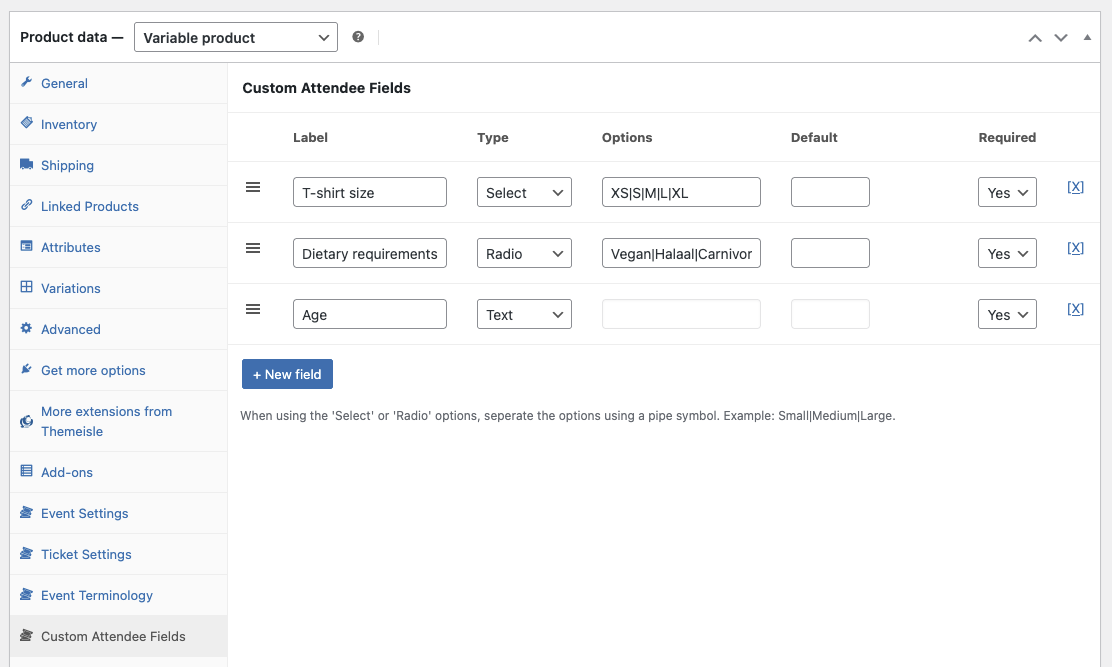
FooEvents peut enregistrer les informations des participants pour chaque billet, ce qui est utile lorsqu'une seule commande porte sur plusieurs billets.
- Ouvrir le Champs personnalisés pour les participants panneau.
- Cliquez sur +Nouveau champ.
- Ajouter Champs personnalisés pour les participants si nécessaire (par exemple, taille de t-shirt, exigences alimentaires, etc.).
👉 Champs personnalisés pour les participants (Aide)
Étape 5 : Publier et valider le flux
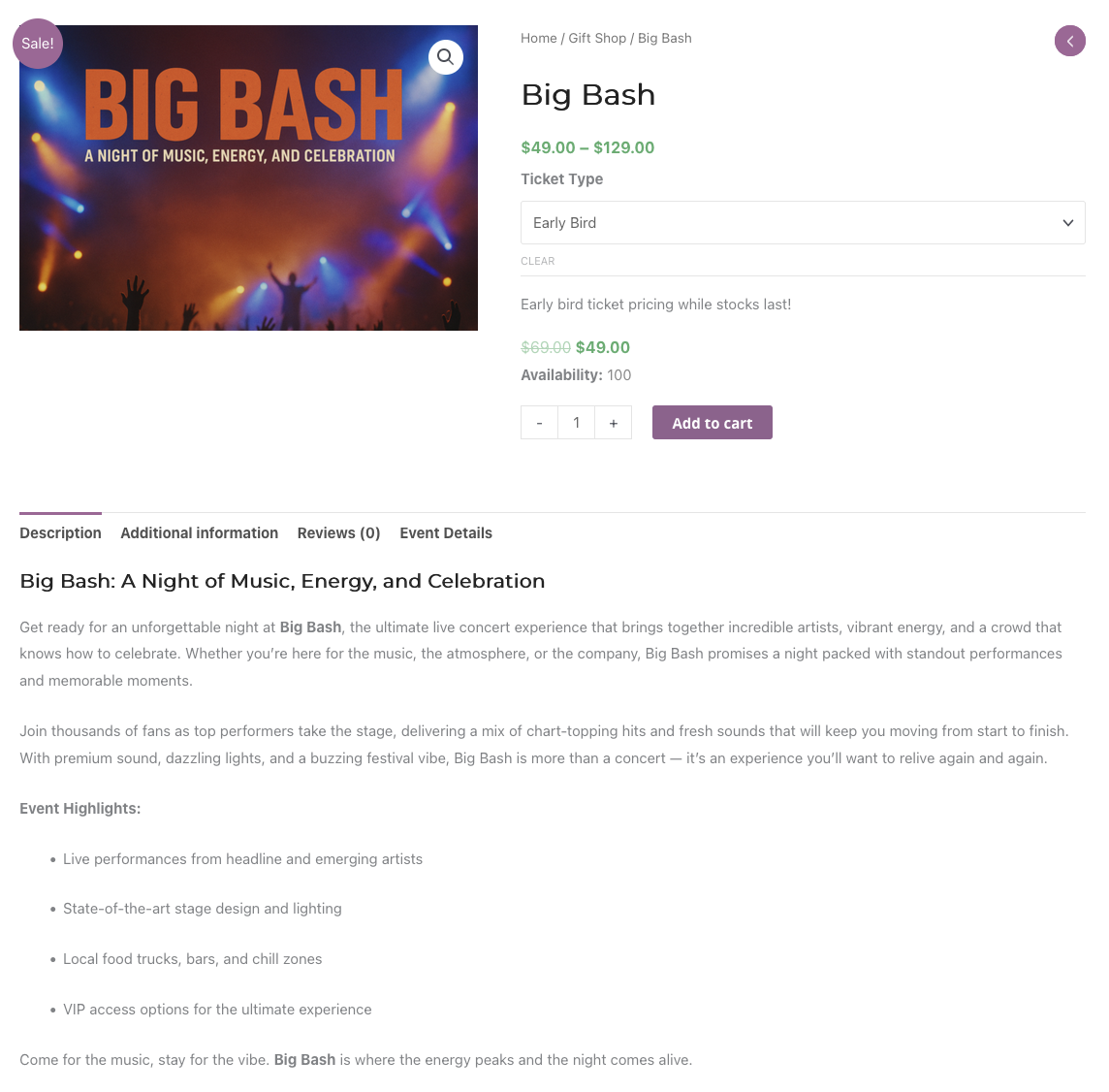
Prévisualisez le produit et effectuez un test rapide comme le ferait un véritable participant.
- Sélectionnez chaque niveau et ajoutez-le au panier. Vérifiez que le prix correct s'affiche.
- Effectuez une commande test et vérifiez que les données des participants sont bien enregistrées pour chaque billet.
- Vérifiez que l'e-mail de confirmation indique bien le nom correct du niveau.
Étape 6 : Conseils pratiques pour la tarification
- Utilisez la rareté à bon escient : Limitez le nombre de places disponibles pour les inscriptions anticipées et/ou fixez une date limite afin d'encourager les décisions rapides.
- Rendez la valeur évidente : Ajoutez une courte liste d'avantages dans la description de chaque variante (par exemple, salon VIP, produits dérivés).
- Ventes incitatives groupées : Envisagez un supplément VIP (par exemple, un t-shirt ou une rencontre avec l'artiste) pour augmenter votre marge bénéficiaire.
- Suivre les performances : Comparez les commandes en fonction des variations dans les rapports ; ajustez les stocks et les prix si un niveau est en retard.
Remarque : Si votre thème personnalise fortement les pages produits, testez la sélection des niveaux sur mobile afin de vous assurer que le menu déroulant et la mise à jour des prix sont bien visibles.
FAQ
Q. Chaque niveau peut-il avoir des questions différentes pour les participants ?
R. Oui. Utilisez les champs personnalisés pour les participants et rendez certains champs obligatoires pour des niveaux spécifiques si la question ne s'applique qu'à ces niveaux.
Q. Comment puis-je mettre fin automatiquement à Early Bird ?
A. Utilisez la variation Calendrier option permettant de mettre fin à un prix de vente ou de fixer le stock à zéro à la date limite.
Q. Puis-je limiter le nombre total de tickets pour tous les niveaux ?
R. Oui. Utilisez les stocks par variante pour contrôler chaque niveau, ou gérez un plafond global en surveillant les ventes combinées et en ajustant les stocks si nécessaire.
Conclusion
La tarification par niveaux vous aide à répondre à différents budgets sans avoir à diviser votre événement en plusieurs produits. Grâce aux variantes FooEvents et WooCommerce, vous contrôlez les prix, les stocks et les données des participants par niveau, ce qui vous permet de tout organiser pour les rapports et les enregistrements.
👉 Visitez FooEvents ou consulter le Produits variables WooCommerce documentation pour commencer à créer vos niveaux de billets.
 English
  German
  Dutch
Dutch  Spanish
  Italian
  Portuguese
  French
  Polish
  Czech
Czech  Greek
Greek