

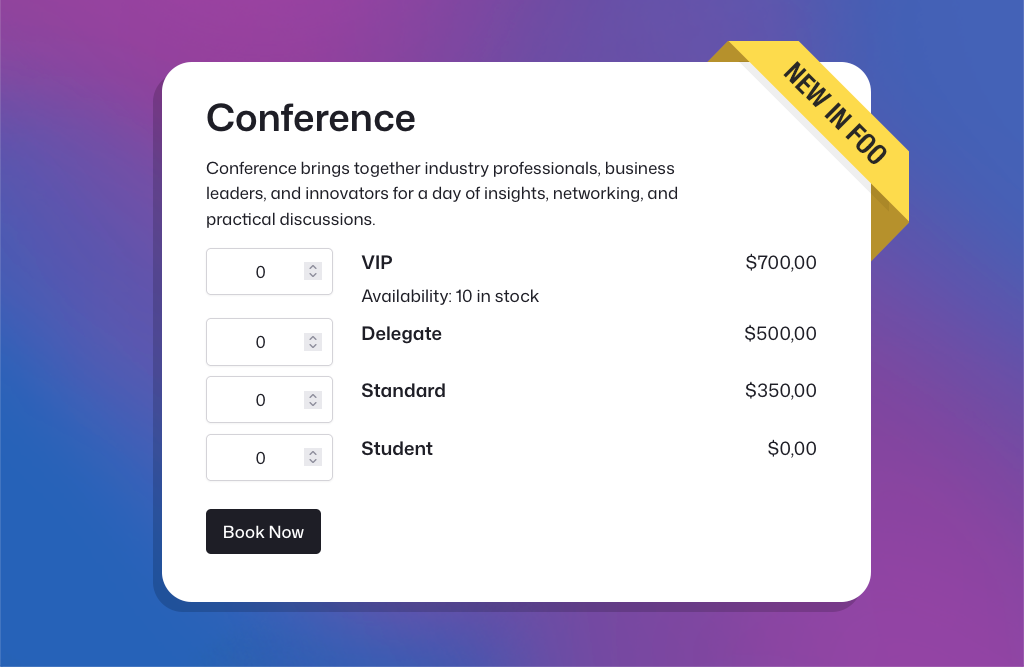
Unter March und April, we released several major new FooEvents features, and the feedback has been fantastic. Building on that momentum, our May release includes three popular feature requests that many FooEvents customers have been asking for.
Let’s take a closer look.
New Table Variation Layout Option
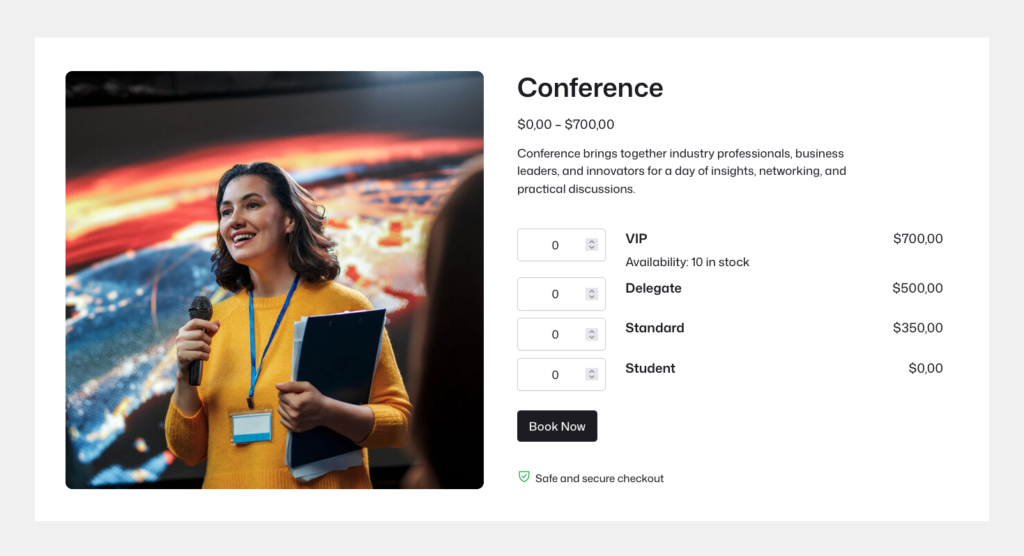
We’ve added a new table variation display option that shows WooCommerce variations in a clean, event-styled table layout. This allows customers to add multiple ticket types to their cart in one go, instead of adding them one at a time.
It also gives the product page a more distinct event-style layout and is ideal for conferences, concerts, workshops, and many other event types. It is fully compatible with the FooEvents Buchungen date and slot selectors, as well as the WooCommerce Product Add-ons Erweiterung.
To enable the table layout, go to FooEvents > Settings > General and enable the Table Variation Layout option. You can also enable or disable the table layout for individual event products, giving you control over which events use the new layout and which continue using the standard WooCommerce variation dropdowns.
Copy Event Settings From Another Product
We’ve added a new option that lets you copy FooEvents settings from another event product.
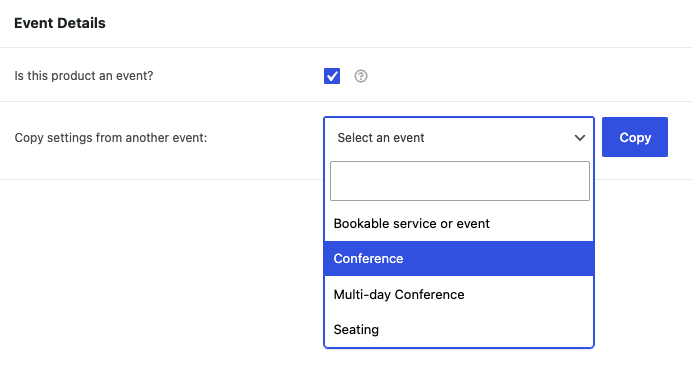
Instead of setting up each event from scratch, you can create a new event product, copy the FooEvents settings from an existing event, and then update only the details that need to change, such as the event date, ticket stock, price, venue, product description, or images.
This saves time, keeps your event setup more consistent, and helps reduce mistakes when creating multiple events. Once you’ve configured an event correctly, you can reuse what already works.
To use this feature, Create a new product, enable Ist dieses Produkt ein Ereignis?, select an existing event from Copy settings from another event, click Copy, then review and save the new event.
Default Check-in Day for the FooEvents Check-ins App
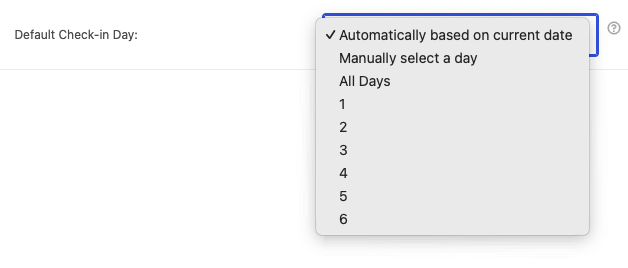
We’ve added a new default check-in day option for mehrtägige Veranstaltungen in the FooEvents Check-ins App.
This is especially useful for events where multiple staff members are using the Check-ins app at the same time. For example, if your event runs over several days, you can make sure each app opens on the correct day instead of relying on staff to select it manually.
Previously, check-in staff had to choose the correct day themselves, which could lead to mistakes during busy check-in periods. With this new setting, you can choose how the Check-ins app should handle the check-in day. You can automatically set the check-in day based on the current date, manually choose a default day, or allow tickets to be checked in for all days.
This helps reduce human error and makes check-ins faster and more accurate.
Update Your FooEvents Plugins
To use these new features, please make sure you update FooEvents for WooCommerce and any FooEvents extensions installed on your site.
As always, we recommend testing updates on a staging site before applying them to a live event website, especially if your site uses custom templates, custom checkout behavior, bookings, seating, or third-party WooCommerce extensions.
 English
  German
  Dutch
Dutch  Spanish
  Italian
  Portuguese
  French
  Polish
  Czech
Czech  Greek
Greek