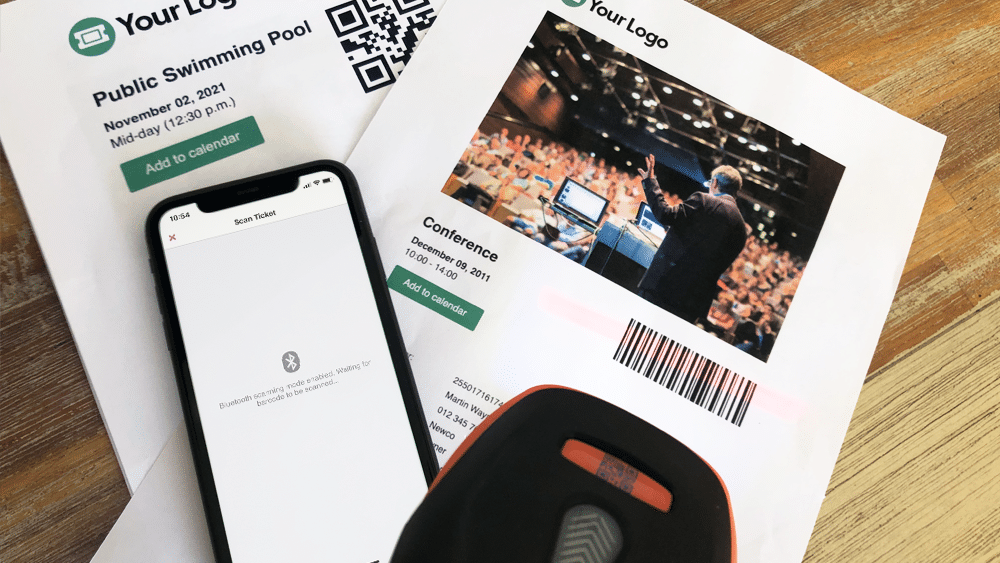
One of the biggest challenges experienced by most event organizers is managing attendee access. Ensuring an organized and steady flow of attendee check-ins is critical, and if not done efficiently, it could lead to lengthy lines and angry customers. To help speed up attendee check-ins, FooEvents automatically adds a unique barcode to each ticket. These barcodes represent a ticket ID and can be used by FooEvents to identify and check-in attendees at your event.
This article outlines everything you need to know in order to successfully scan barcodes and Κωδικός QRs using FooEvents.
- What are barcodes and Κωδικός QRs?
- Purchasing a σαρωτής
- Connecting a barcode ή QR code scanner
- Configuring your σαρωτής
- Σάρωση εισιτηρίων
- Συμβουλές μπόνους
- Πρόσθετοι πόροι βοήθειας
1. What are barcodes and Κωδικός QRs?
Barcodes and Κωδικός QRs are simply images that represents alphanumeric values. The image is scanned using a σαρωτής, which is essentially just an input device, much like a keyboard. When the σαρωτής decodes the image to determine the value that the code represents, it sends the value back to your computer or mobile device. Using barcodes or Κωδικός QRs will save you from having to manually enter the ticket ID using a keyboard and will speed up check-ins and reduce the likelihood of human error.
While Κωδικός QRs do offer certain advantages over barcodes, in terms of scanning tickets generated by FooEvents, barcodes and Κωδικός QRs serve the same purpose. That said, you might find that Κωδικός QRs are easier to scan, especially in lowlight conditions, which would help to speed up attendee check-ins.
FooEvents uses barcodes by default but you can enable Κωδικός QRs via the main FooEvents settings. To do so, login to your Περιοχή διαχείρισης WordPress, πλοηγηθείτε στο FooEvents > Ρυθμίσεις > Σχεδιασμός εισιτηρίων και τσεκάρετε την επιλογή Ενεργοποίηση Κωδικός QRs.
2. Purchasing a σαρωτής
There are a few things to consider when purchasing a σαρωτής:
- FooEvents supports both barcodes and Κωδικός QRs, however, not all σαρωτήςs support both formats. It is important that you purchase a σαρωτής that supports the format you will be using.
- If you plan to use the σαρωτής with the Εφαρμογές FooEvents Check-ins on an iPhone, it is important that you purchase a Bluetooth σαρωτής as iPhones do not support USB σαρωτήςs.
- If you plan to use the σαρωτής with the FooEvents Check-ins apps on an Android device, it is important to check that the device supports Bluetooth or USB before purchasing the σαρωτής.
- Some σαρωτήςs also support a wireless option that uses a USB wireless dongle. Be sure to first check that your device supports this before purchasing the σαρωτής.
- If you are using barcodes, ensure that the σαρωτής supports 1D code-128 barcodes.
- Δείτε το barcode και QR code scanners που συνιστούμε
3. Connecting a barcode ή QR code scanner
Bluetooth σαρωτήςs
Bluetooth σαρωτήςs are paired in the same manner as a Bluetooth speaker, headphone or keyboard. You will need to go to the Bluetooth settings on your device and ensure that Bluetooth is turned on. You can then find the Bluetooth σαρωτής in the list of available Bluetooth devices. You will then need to connect/pair the σαρωτής to the device.
Once connected, open a basic text editor application such as Notepad or TextEdit and scan the barcode ή Κωδικός QR to make sure that the device is working correctly.
USB σαρωτήςs
USB σαρωτήςs work in a similar way to USB keyboards. Plug the σαρωτής into the USB port and you should be able to scan straight away. You can test to see if it is scanning correctly by opening a basic text editor application such as Notepad or TextEdit and then scan any barcode ή Κωδικός QR. When you scan a barcode, a number should display in the text editor which is what the barcode represents.
4. Configuring your σαρωτής
Σαρωτήςs are made by various manufacturers and come with different default factory settings. Your σαρωτής should come with a manual or page that includes a series of barcodes. Each barcode will perform a different command when scanned which makes it possible to calibrate and configure your σαρωτής ανάλογα με τις ανάγκες.

This is an example of a σαρωτής setup sheet. Setup differs depending on the manufacturer. If you have lost your setup sheet, try Googling the make and model of your particular device and add the term ‘Setup’ or ‘barcode setup sheet’.
Ακολουθούν μερικές κοινές επιλογές ρύθμισης που μπορεί να χρειαστεί να διαμορφωθούν (διαφέρει από κατασκευαστή σε κατασκευαστή):
- Μπαρcode encoding – Depending on your device, it might scan barcodes in a different format/encoding by default. Make sure that your barcode scanner is set to Code-128.
- Ενεργοποίηση/απενεργοποίηση νέας επιστροφής γραμμής – Be sure to configure your σαρωτής so that it doesn’t add a new line when scanning a number. This might cause issues since the barcode numbers won’t match because of this extra character.
- Γλώσσα – Make sure that the barcode scanner is set to the correct language or else it might return unexpected characters when scanning.
The best way to test if your σαρωτής is scanning correctly, is to open a basic text editor application such as Notepad or TextEdit and scan a barcode ή Κωδικός QR to make sure that the output is correct.
Once you have connected and configured your σαρωτής, you are ready to start scanning tickets.
5. Σάρωση εισιτηρίων
Υπάρχουν τρεις τρόποι με τους οποίους μπορείτε να σαρώσετε τα εισιτήρια χρησιμοποιώντας το FooEvents:
- Εφαρμογές FooEvents Check-ins + ενσωματωμένη κάμερα της συσκευής
- Εφαρμογές FooEvents Check-ins + Bluetooth σαρωτής
- FooEvents Express Check-ins + Bluetooth σαρωτής or USB σαρωτής
FooEvents Εφαρμογές check-ins + ενσωματωμένη κάμερα
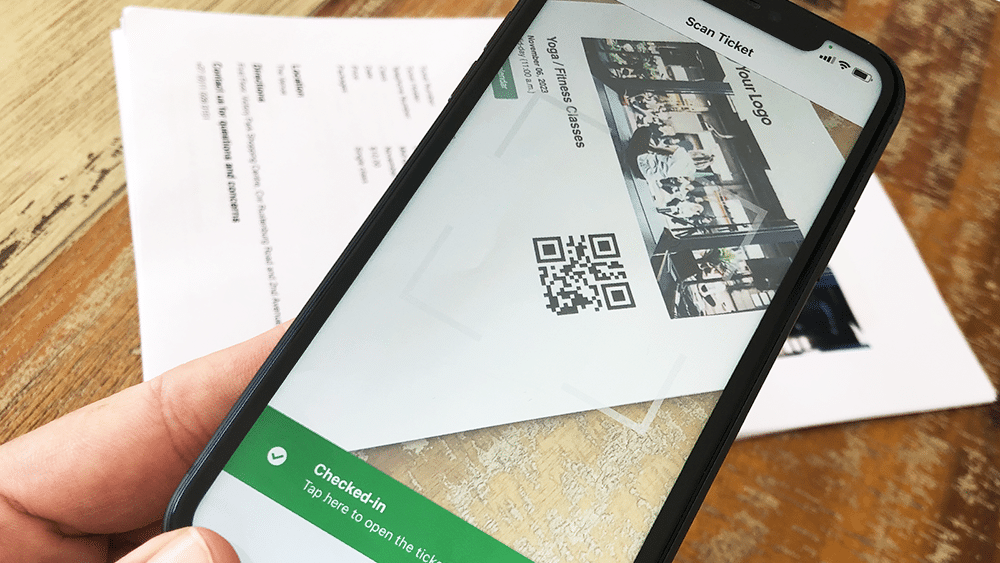
Χρησιμοποιώντας το Εφαρμογές FooEvents Check-ins you can scan tickets using the device’s built-in camera. The following video demonstrates how to do this:
Σάρωση εισιτηρίων με την ενσωματωμένη κάμερα της συσκευής
- Ανοίξτε την εφαρμογή και συνδεθείτε στο κατάστημά σας
- Ενεργοποιήστε το Λειτουργία αυτόματου check-in για να επιταχύνετε τα check-ins
- Πλοηγηθείτε στο λίστα εκδηλώσεων ή επιλέξτε το σχετικό εκδήλωση
- Επιλέξτε το barcode icon στο κάτω μέρος της οθόνης και έναρξη σάρωσης εισιτηρίων
- Θα εμφανιστεί μια προβολή κάμερας, κρατήστε τη συσκευή περίπου 10cm - 30cm (4″ - 12″) above the barcode
- Σάρωση το εισιτήριο και check-in ο συμμετέχων
- Μπορείτε επίσης να σαρώνετε εισιτήρια απευθείας από την κύρια οθόνη της εφαρμογής. Αυτό θα αναζητήσει όλες τις εκδηλώσεις για τον αντίστοιχο αριθμό εισιτηρίου. Αυτό είναι χρήσιμο αν πραγματοποιείτε πολλές εκδηλώσεις ταυτόχρονα στην ίδια τοποθεσία.
FooEvents Εφαρμογές check-ins + σαρωτής Bluetooth
If you would like to use a Bluetooth σαρωτής to scan tickets, you can connect it to your mobile device and enable the Bluetooth option in the Εφαρμογές FooEvents Check-ins. Το παρακάτω βίντεο δείχνει πώς να το κάνετε αυτό:
Scan tickets using a Bluetooth σαρωτής
- Συνδέστε το Bluetooth σαρωτής στη συσκευή σας.
- Ανοίξτε το Εφαρμογή FooEvents Check-ins και Σύνδεση
- Μεταβείτε στην εφαρμογή Ρυθμίσεις
- Ενεργοποίηση το Bluetooth barcode scanner ρύθμιση
- Πλοηγηθείτε στο λίστα εκδηλώσεων ή επιλέξτε το σχετικό εκδήλωση
- Επιλέξτε το barcode icon στο κάτω μέρος της οθόνης και έναρξη σάρωσης εισιτηρίων
FooEvents Express Check-ins extension + Bluetooth or USB σαρωτής:
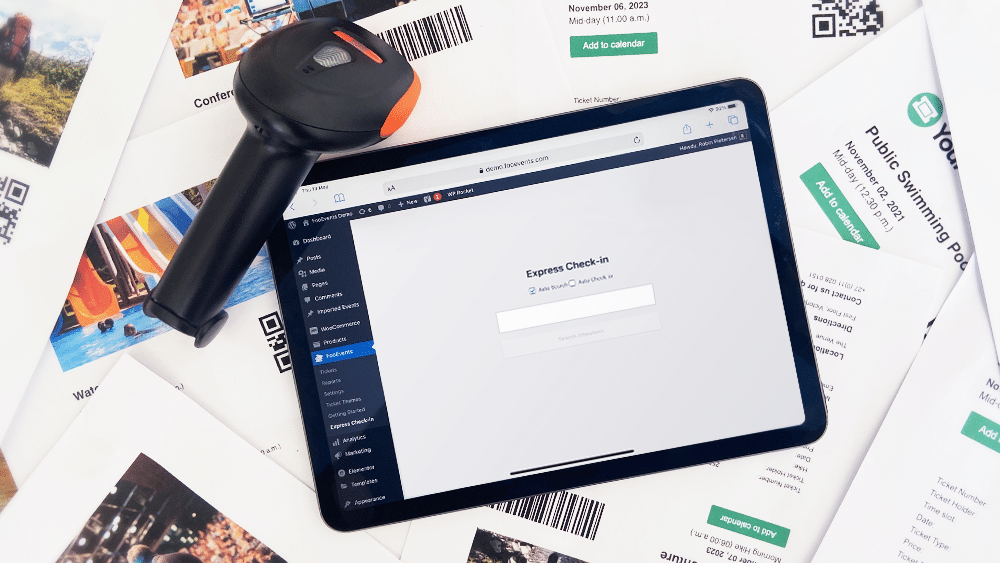
Το FooEvents Express Check-in plugin is an extension for FooEvents which makes it possible to search for attendees from your WordPress admin area using a paired Bluetooth or USB barcode scanner. You also have the option of automatically checking in attendees to further speed up the process. FooEvents Express Check-ins can be used on your desktop computer or on a tablet device with a connected barcode scanner. The following video illustrates how to connect a Bluetooth σαρωτής to an iPad and scan tickets using the FooEvents Express Check-in interface.
Σαρώστε τα εισιτήρια από τον υπολογιστή ή το tablet σας
- Συνδέστε ένα USB ή Bluetooth σαρωτής στον επιτραπέζιο υπολογιστή σας
- Πηγαίνετε στο WordPress Περιοχή διαχείρισης > FooEvents > Express Check-in στο πρόγραμμα περιήγησης του υπολογιστή σας
- Ενεργοποίηση Αυτόματη αναζήτηση - Το πλαίσιο αναζήτησης θα εμφανίζει αυτόματα δεδομένα καθώς πληκτρολογείτε
- Ενεργοποίηση Αυτόματο check-in - Ο συμμετέχων θα σημειωθεί αυτόματα ως "Checked In" εάν βρεθεί ένα αναγνωριστικό εισιτηρίου που ταιριάζει με τα κριτήρια αναζήτησης. Αυτό αποσκοπεί στην εξοικονόμηση χρόνου, ειδικά όταν χρησιμοποιείται σαρωτής γραμμωτού κώδικα.code scanner
- Τοποθετήστε τον κέρσορα στο πλαίσιο κειμένου
- Σαρώστε ένα εισιτήριο και το ID του εισιτηρίου θα εμφανιστεί στο πλαίσιο κειμένου
6. Συμβουλές μπόνους
- If you are experiencing difficulties using regular 1D barcodes, try using Κωδικός QRs, as they generally produce less scanning errors and can be printed smaller without any negative effects.
- Βεβαιωθείτε ότι υπάρχει αρκετός φωτισμός και αντίθεση κατά τη σάρωση και προσπαθήστε να αποφύγετε τη σάρωση σε περιβάλλοντα με χαμηλό φωτισμό.
- Ensure the barcodes or Κωδικός QRs are not positioned too close to each other as they might confuse the σαρωτής.
- Ενεργοποιήστε την επιλογή Αυτόματος έλεγχος εισιτηρίων για να επιταχύνετε τη διαδικασία επικύρωσης εισιτηρίων.
- Δοκιμάστε, δοκιμάστε και ξαναδοκιμάστε. Βεβαιωθείτε ότι έχετε κατανοήσει πλήρως τη ροή εργασιών του ταμείου και ότι είστε σε θέση να σαρώνετε γραμμωτούς κώδικες στο περιβάλλον της εκδήλωσης.
- Οτιδήποτε μπορεί να συμβεί, γι' αυτό φροντίστε να έχετε ένα σταθερό εφεδρικό σχέδιο. Ανάλογα με το μέγεθος της εκδήλωσής σας, μπορεί να είναι καλή ιδέα να εξαγωγή λίστας όλων των συμμετεχόντων και να έχετε τα δεδομένα διαθέσιμα ως λογιστικό φύλλο σε έντυπη και μη έντυπη μορφή. Αυτό μπορεί να σας σώσει την κατάσταση σε περίπτωση που χαθεί το τηλέφωνό σας, υπάρξει διακοπή ρεύματος ή διακοπεί το διαδίκτυο.
7. Πρόσθετοι πόροι βοήθειας
- How do I remove barcodes/QR codes from tickets?
- Why are barcodes, Κωδικός QRs, logos or other images not being generated and displayed in tickets?
- Γραμμωτοί κώδικες εισιτηρίων
- Σάρωση εισιτηρίων
- Σάρωση εισιτηρίων με την εφαρμογή
- Μπαρcode scanners
- Ticket Κωδικός QRs
- Πρέπει οι συμμετέχοντες να εκτυπώσουν τα εισιτήριά τους για την εκδήλωσή μου;
- Recommended barcode και QR code scanners
Θα θέλαμε πολύ να ακούσουμε τα σχόλιά σας, γι' αυτό παρακαλούμε επικοινωνήστε αν έχετε οποιεσδήποτε ερωτήσεις.