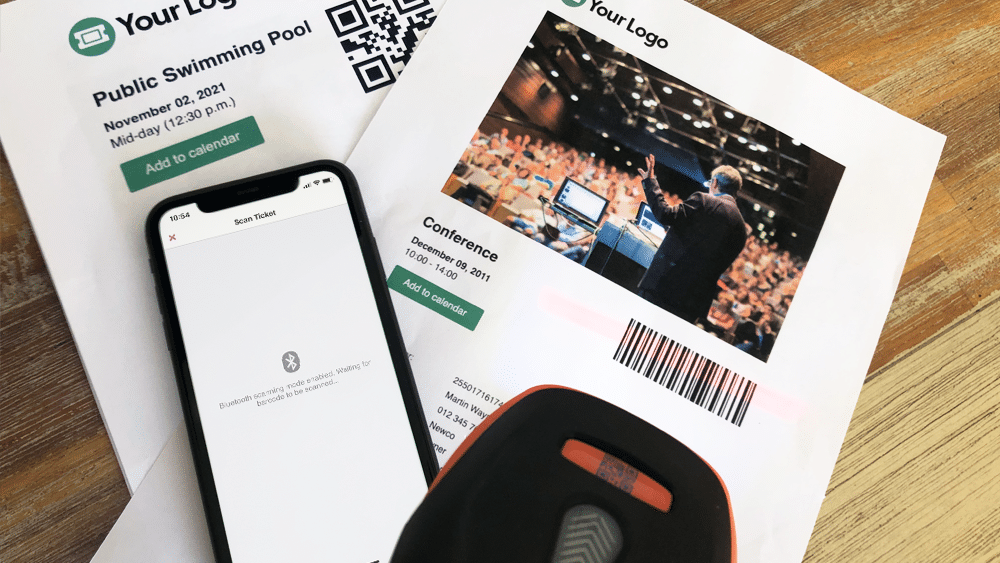
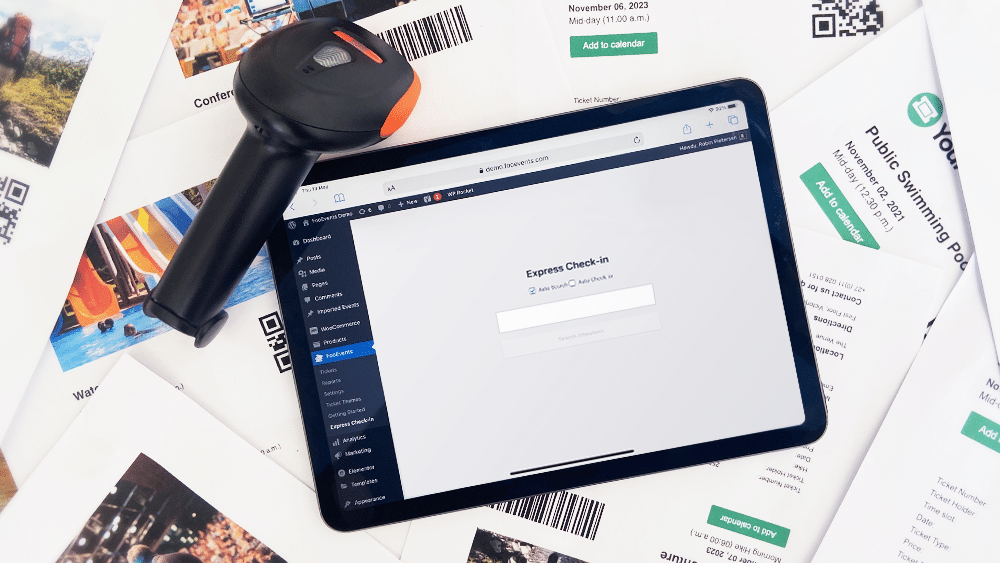
Hoe barcodes en QR-codes voor tickets scannen met FooEvents en WooCommerce

Fooevents Barcodes Scanners Cover

One of the biggest challenges experienced by most event organizers is managing attendee access. Ensuring an organized and steady flow of attendee check-ins is critical, and if not done efficiently, it could lead to lengthy lines and angry customers. To help speed up attendee check-ins, FooEvents automatically adds a unique barcode to each ticket. These barcodes represent a ticket ID and can be used by FooEvents to identify and check-in attendees at your event.

This article outlines everything you need to know in order to successfully scan barcodes and QR-codes using FooEvents.

  1. What are barcodes and QR-codes?
  2. Purchasing a scanner
  3. Connecting a barcode of QR code scanner
  4. Configuring your scanner
  5. Tickets scannen
  6. Bonus tips
  7. Extra hulpbronnen

1. What are barcodes and QR-codes?

Barcodes and QR-codes are simply images that represents alphanumeric values. The image is scanned using a scanner, which is essentially just an input device, much like a keyboard. When the scanner decodes the image to determine the value that the code represents, it sends the value back to your computer or mobile device. Using barcodes or QR-codes will save you from having to manually enter the ticket ID using a keyboard and will speed up check-ins and reduce the likelihood of human error.

Fooevents Barcode vs Qrcode

While QR-codes do offer certain advantages over barcodes, in terms of scanning tickets generated by FooEvents, barcodes and QR-codes serve the same purpose. That said, you might find that QR-codes are easier to scan, especially in lowlight conditions, which would help to speed up attendee check-ins.

FooEvents uses barcodes by default but you can enable QR-codes via the main FooEvents settings. To do so, login to your WordPress beheerdersgebiednavigeer naar FooEvents > Instellingen > Ontwerp ticket en vink de optie inschakelen QR-codes.

2. Purchasing a scanner

There are a few things to consider when purchasing a scanner:

  • FooEvents supports both barcodes and QR-codes, however, not all scanners support both formats. It is important that you purchase a scanner that supports the format you will be using.
  • If you plan to use the scanner with the FooEvents Check-ins apps on an iPhone, it is important that you purchase a Bluetooth scanner as iPhones do not support USB scanners.
  • If you plan to use the scanner with the FooEvents Check-ins apps on an Android device, it is important to check that the device supports Bluetooth or USB before purchasing the scanner.
  • Some scanners also support a wireless option that uses a USB wireless dongle. Be sure to first check that your device supports this before purchasing the scanner.
  • If you are using barcodes, ensure that the scanner supports 1D code-128 barcodes.
  • Zie de barcode en QR code scanners die we aanbevelen

3. Connecting a barcode of QR code scanner

Bluetooth scanners

Bluetooth scanners are paired in the same manner as a Bluetooth speaker, headphone or keyboard. You will need to go to the Bluetooth settings on your device and ensure that Bluetooth is turned on. You can then find the Bluetooth scanner in the list of available Bluetooth devices. You will then need to connect/pair the scanner to the device.

Once connected, open a basic text editor application such as Notepad or TextEdit and scan the barcode of QR-code to make sure that the device is working correctly.

1. Pair the Bluetooth scanner to your device

2. Scan any barcode of QR-code

3. Ensure the code outputs to your device

USB scanners

USB scanners work in a similar way to USB keyboards. Plug the scanner into the USB port and you should be able to scan straight away. You can test to see if it is scanning correctly by opening a basic text editor application such as Notepad or TextEdit and then scan any barcode of QR-code. When you scan a barcode, a number should display in the text editor which is what the barcode represents.

4. Configuring your scanner

Scanners are made by various manufacturers and come with different default factory settings. Your scanner should come with a manual or page that includes a series of barcodes. Each barcode will perform a different command when scanned which makes it possible to calibrate and configure your scanner indien nodig.

Fooevents Voorbeeld Barcode Instelling

This is an example of a scanner setup sheet. Setup differs depending on the manufacturer. If you have lost your setup sheet, try Googling the make and model of your particular device and add the term ‘Setup’ or ‘barcode setup sheet’.

Hier zijn enkele veelvoorkomende instelopties die mogelijk geconfigureerd moeten worden (verschilt per fabrikant):

  • Barcode encoding – Depending on your device, it might scan barcodes in a different format/encoding by default. Make sure that your barcode scanner is set to Code-128.
  • Nieuwe regelretour inschakelen/uitschakelen – Be sure to configure your scanner so that it doesn’t add a new line when scanning a number. This might cause issues since the barcode numbers won’t match because of this extra character.
  • Taal – Make sure that the barcode scanner is set to the correct language or else it might return unexpected characters when scanning.

The best way to test if your scanner is scanning correctly, is to open a basic text editor application such as Notepad or TextEdit and scan a barcode of QR-code to make sure that the output is correct.

Once you have connected and configured your scanner, you are ready to start scanning tickets.
5. Tickets scannen

Er zijn drie manieren waarop je tickets kunt scannen met FooEvents:

  1. FooEvents Check-ins apps + ingebouwde apparaatcamera
  2. FooEvents Check-ins apps + Bluetooth scanner
  3. FooEvents Snel inchecken + Bluetooth scanner or USB scanner

FooEvents Check-ins apps + ingebouwde camera

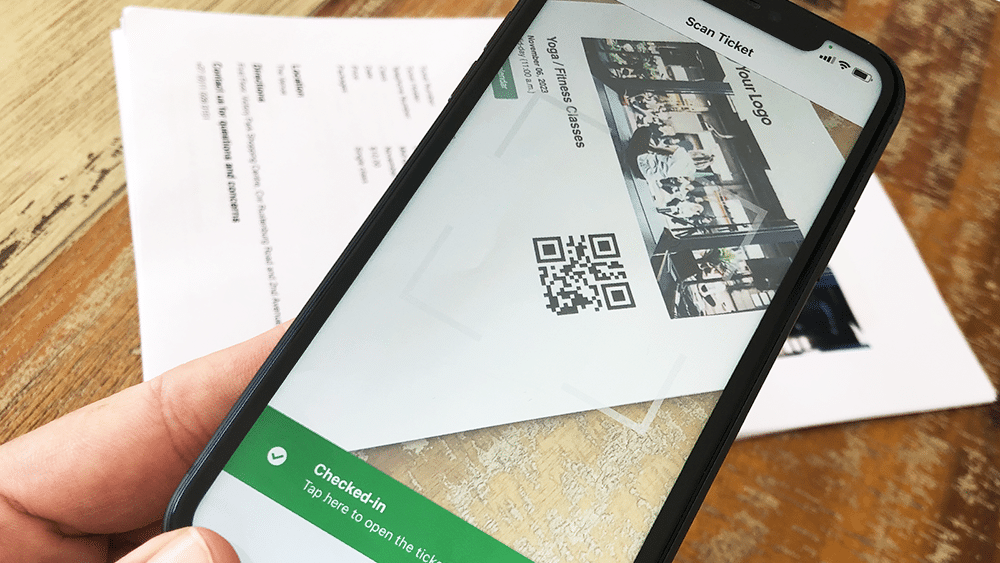
De FooEvents Check-ins apps kun je tickets scannen met de ingebouwde camera van het apparaat. De volgende video demonstreert hoe je dit doet:

Fooevents Barcode Scannen Ingebouwde Camera Sml

Tickets scannen met de ingebouwde camera van het apparaat

  1. Open de app en verbinding maken met je winkel
  2. Schakel de Functie voor automatisch inchecken om check-ins te versnellen
  3. Navigeer naar de evenementenlijst of selecteer de relevante evenement
  4. Selecteer de barcode pictogram onderaan het scherm en tickets scannen
  5. Er wordt een cameraweergave weergegeven, houd het apparaat ongeveer 10cm - 30cm (4″ - 12″) above the barcode
  6. Scan het ticket en inchecken de deelnemer
  7. Je kunt tickets ook rechtstreeks vanuit het hoofdscherm van de app scannen. Hiermee worden alle evenementen doorzocht op een overeenkomend ticketnummer. Dit is handig als je meerdere evenementen tegelijk organiseert op dezelfde locatie.

FooEvents Check-ins apps + Bluetooth-scanner

If you would like to use a Bluetooth scanner to scan tickets, you can connect it to your mobile device and enable the Bluetooth option in the FooEvents Check-ins apps. De volgende video laat zien hoe je dit doet:

Fooevents Bluetooth Scanner 01

Scan tickets using a Bluetooth scanner

  1. Sluit de Bluetooth scanner naar uw apparaat.
  2. Open de FooEvents Check-ins app en Inloggen
  3. Ga naar de app Instellingen
  4. inschakelen de Bluetooth barcode scanner instelling
  5. Navigeer naar de evenementenlijst of selecteer de relevante evenement
  6. Selecteer de barcode pictogram onderaan het scherm en tickets scannen

FooEvents Express Check-ins extension + Bluetooth or USB scanner:

De FooEvents Snel inchecken plugin is an extension for FooEvents which makes it possible to search for attendees from your WordPress admin area using a paired Bluetooth or USB barcode scanner. You also have the option of automatically checking in attendees to further speed up the process. FooEvents Express Check-ins can be used on your desktop computer or on a tablet device with a connected barcode scanner. The following video illustrates how to connect a Bluetooth scanner to an iPad and scan tickets using the FooEvents Express Check-in interface.

Fooevents Scanner Ipad 1

Scan tickets op je desktop of tablet

  1. Sluit een USB of Bluetooth scanner naar uw desktopcomputer
  2. Ga naar je WordPress Beheersgebied > FooEvents > Express inchecken in uw desktopbrowser
  3. inschakelen Automatisch zoeken - Het zoekvak geeft automatisch gegevens weer terwijl u typt
  4. inschakelen Automatisch inchecken - De bezoeker wordt automatisch gemarkeerd als "Ingecheckt" als er een ticket-ID wordt gevonden die overeenkomt met de zoekcriteria. Dit is bedoeld om tijd te besparen, vooral bij het gebruik van een barcodescanner.code scanner
  5. Plaats de cursor in de tekstvak
  6. Een ticket scannen en de ticket-ID wordt weergegeven in het tekstvak

6. Bonus tips

    1. If you are experiencing difficulties using regular 1D barcodes, try using QR-codes, as they generally produce less scanning errors and can be printed smaller without any negative effects.
    2. Zorg voor voldoende licht en contrast bij het scannen en probeer scannen in omgevingen met weinig licht te vermijden.
    3. Ensure the barcodes or QR-codes are not positioned too close to each other as they might confuse the scanner.
    4. Schakel de optie Automatisch inchecken in om het ticketvalidatieproces te versnellen.
    5. Test, test en nog eens test. Zorg ervoor dat je de workflow van het afrekenen volledig begrijpt en dat je barcodes kunt scannen in de evenementomgeving.
    6. Er kan van alles gebeuren, dus zorg voor een goed back-up plan. Afhankelijk van de grootte van je evenement kan het een goed idee zijn om een lijst exporteren van alle deelnemers en de gegevens beschikbaar hebben als spreadsheet, zowel in geprinte vorm als op papier. Dit kan de dag redden als je telefoon zoekraakt, de stroom uitvalt of het internet uitvalt.

7. Extra hulpbronnen

Abonneren op de blog digest

Ontvang een samenvatting van de nieuwste berichten in je inbox.

Je gegevens konden niet worden verzonden. Probeer het opnieuw.
Je bent succesvol ingeschreven!

We gebruiken Brevo als ons marketingplatform. Door dit formulier in te dienen ga je ermee akkoord dat de persoonlijke gegevens die je hebt verstrekt worden overgedragen aan Brevo voor verwerking in overeenstemming met Privacybeleid van Brevo.

Winkelwagen