Comment scanner les codes-barres des billets et les codes QR en utilisant FooEvents et WooCommerce ?

Fooevents Codes-barres Scanners Couverture

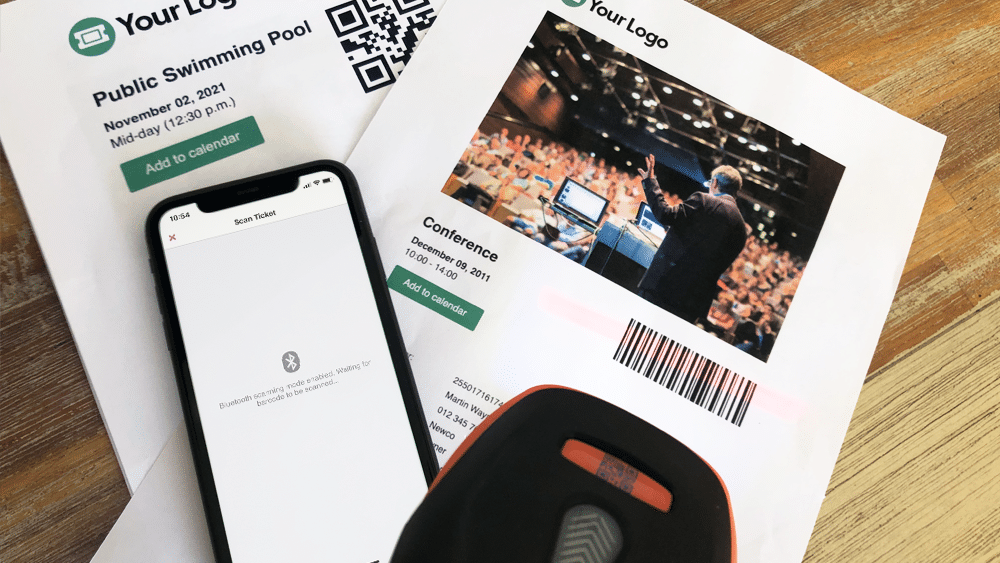
One of the biggest challenges experienced by most event organizers is managing attendee access. Ensuring an organized and steady flow of attendee check-ins is critical, and if not done efficiently, it could lead to lengthy lines and angry customers. To help speed up attendee check-ins, FooEvents automatically adds a unique barcode to each ticket. These barcodes represent a ticket ID and can be used by FooEvents to identify and check-in attendees at your event.

This article outlines everything you need to know in order to successfully scan barcodes and Code QRs using FooEvents.

  1. What are barcodes and Code QRs?
  2. Purchasing a scanner
  3. Connecting a barcode ou QR code scanner
  4. Configuring your scanner
  5. Numérisation des billets
  6. Conseils en matière de bonus
  7. Ressources d'aide supplémentaires

1. What are barcodes and Code QRs?

Barcodes and Code QRs are simply images that represents alphanumeric values. The image is scanned using a scanner, which is essentially just an input device, much like a keyboard. When the scanner decodes the image to determine the value that the code represents, it sends the value back to your computer or mobile device. Using barcodes or Code QRs will save you from having to manually enter the ticket ID using a keyboard and will speed up check-ins and reduce the likelihood of human error.

Fooevents Barcode Vs Qrcode

While Code QRs do offer certain advantages over barcodes, in terms of scanning tickets generated by FooEvents, barcodes and Code QRs serve the same purpose. That said, you might find that Code QRs are easier to scan, especially in lowlight conditions, which would help to speed up attendee check-ins.

FooEvents uses barcodes by default but you can enable Code QRs via the main FooEvents settings. To do so, login to your Zone d'administration de WordPress, naviguer jusqu'à FooEvents > Paramètres > Conception des billets et cochez l'option Activer Code QRs.

2. Purchasing a scanner

There are a few things to consider when purchasing a scanner:

  • FooEvents supports both barcodes and Code QRs, however, not all scanners support both formats. It is important that you purchase a scanner that supports the format you will be using.
  • If you plan to use the scanner with the FooEvents Applications d'enregistrement on an iPhone, it is important that you purchase a Bluetooth scanner as iPhones do not support USB scanners.
  • If you plan to use the scanner with the FooEvents Check-ins apps on an Android device, it is important to check that the device supports Bluetooth or USB before purchasing the scanner.
  • Some scanners also support a wireless option that uses a USB wireless dongle. Be sure to first check that your device supports this before purchasing the scanner.
  • If you are using barcodes, ensure that the scanner supports 1D code-128 barcodes.
  • Voir le barcode et QR code scanners que nous recommandons

3. Connecting a barcode ou QR code scanner

Bluetooth scanners

Bluetooth scanners are paired in the same manner as a Bluetooth speaker, headphone or keyboard. You will need to go to the Bluetooth settings on your device and ensure that Bluetooth is turned on. You can then find the Bluetooth scanner in the list of available Bluetooth devices. You will then need to connect/pair the scanner to the device.

Once connected, open a basic text editor application such as Notepad or TextEdit and scan the barcode ou Code QR to make sure that the device is working correctly.

1. Pair the Bluetooth scanner to your device

2. Scan any barcode ou Code QR

3. Ensure the code outputs to your device

USB scanners

USB scanners work in a similar way to USB keyboards. Plug the scanner into the USB port and you should be able to scan straight away. You can test to see if it is scanning correctly by opening a basic text editor application such as Notepad or TextEdit and then scan any barcode ou Code QR. When you scan a barcode, a number should display in the text editor which is what the barcode represents.

4. Configuring your scanner

Scanners are made by various manufacturers and come with different default factory settings. Your scanner should come with a manual or page that includes a series of barcodes. Each barcode will perform a different command when scanned which makes it possible to calibrate and configure your scanner si nécessaire.

Fooevents Exemple de code-barres

This is an example of a scanner setup sheet. Setup differs depending on the manufacturer. If you have lost your setup sheet, try Googling the make and model of your particular device and add the term ‘Setup’ or ‘barcode setup sheet’.

Voici quelques options d'installation courantes qu'il peut être nécessaire de configurer (elles diffèrent d'un fabricant à l'autre) :

  • Barrecode encoding – Depending on your device, it might scan barcodes in a different format/encoding by default. Make sure that your barcode scanner is set to Code-128.
  • Activer/désactiver le retour à la ligne – Be sure to configure your scanner so that it doesn’t add a new line when scanning a number. This might cause issues since the barcode numbers won’t match because of this extra character.
  • Langue – Make sure that the barcode scanner is set to the correct language or else it might return unexpected characters when scanning.

The best way to test if your scanner is scanning correctly, is to open a basic text editor application such as Notepad or TextEdit and scan a barcode ou Code QR to make sure that the output is correct.

Once you have connected and configured your scanner, you are ready to start scanning tickets.
5. Numérisation des billets

Il y a trois façons de scanner les billets avec FooEvents :

  1. FooEvents Applications d'enregistrement + caméra intégrée à l'appareil
  2. FooEvents Applications d'enregistrement + Bluetooth scanner
  3. FooEvents Enregistrements express + Bluetooth scanner or USB scanner

FooEvents Applications d'enregistrement + appareil photo intégré

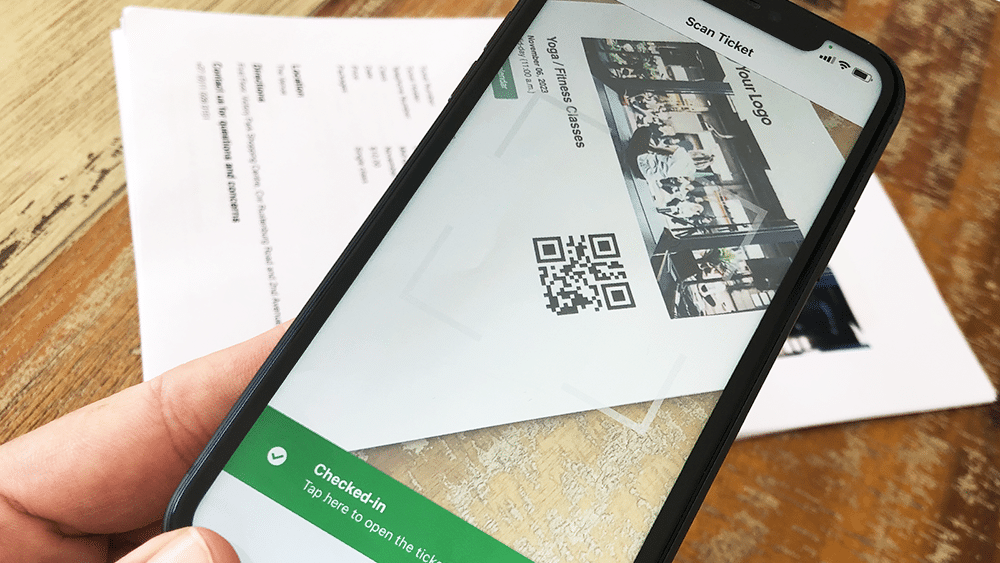
L'utilisation de la FooEvents Applications d'enregistrement vous pouvez scanner des billets à l'aide de l'appareil photo intégré à l'appareil. La vidéo suivante montre comment procéder :

Fooevents Scanner de codes-barres Caméra intégrée Sml

Scanner les tickets à l'aide de l'appareil photo intégré à l'appareil

  1. Ouvrez l'application et se connecter à votre magasin
  2. Activer le Fonction d'enregistrement automatique pour accélérer les vérifications
  3. Naviguez jusqu'à la page liste d'événements ou sélectionner la rubrique événement
  4. Sélectionnez l'option barcode icône en bas de l'écran et commencer à scanner les billets
  5. Une vue de la caméra s'affiche, maintenez l'appareil à peu près en place. 10cm - 30cm (4″ - 12″) above the barcode
  6. Scanner le billet et enregistrement le participant
  7. Vous pouvez également scanner les billets directement à partir de l'écran principal de l'application. Cela permet de rechercher un numéro de billet correspondant à tous les événements. Cette fonction est utile si vous organisez plusieurs événements simultanément au même endroit.

FooEvents Applications de check-ins + scanner Bluetooth

If you would like to use a Bluetooth scanner to scan tickets, you can connect it to your mobile device and enable the Bluetooth option in the FooEvents Applications d'enregistrement. La vidéo suivante illustre la procédure à suivre :

Fooevents Scanner Bluetooth 01

Scan tickets using a Bluetooth scanner

  1. Connecter le Bluetooth scanner à votre appareil.
  2. Ouvrir le FooEvents Application Check-ins et connexion
  3. Accéder à l'application Paramètres
  4. Activer les Bluetooth barcode scanner réglage
  5. Naviguez jusqu'à la page liste d'événements ou sélectionner la rubrique événement
  6. Sélectionnez l'option barcode icône en bas de l'écran et commencer à scanner les billets

FooEvents Express Check-ins extension + Bluetooth or USB scanner:

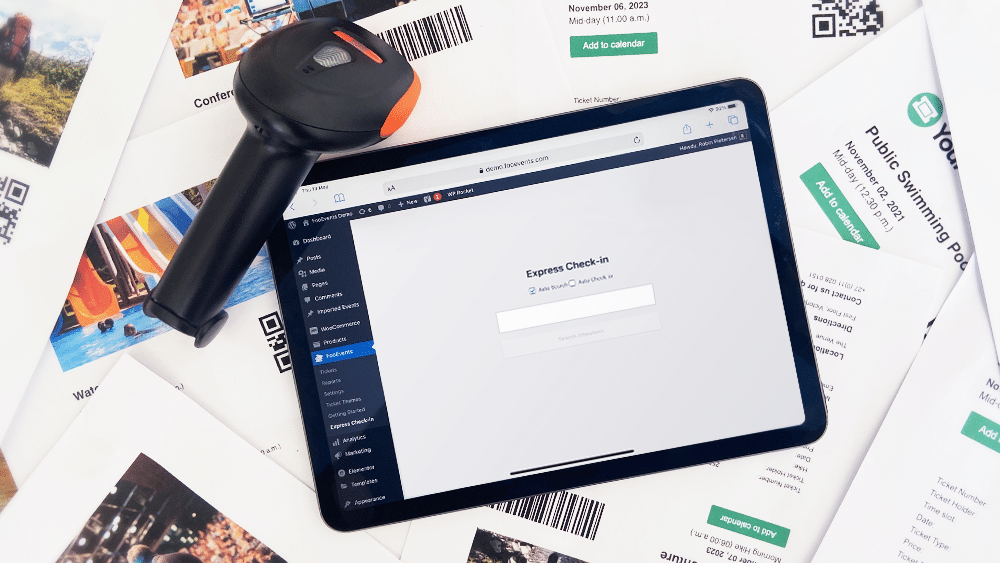
Les FooEvents Enregistrement express plugin is an extension for FooEvents which makes it possible to search for attendees from your WordPress admin area using a paired Bluetooth or USB barcode scanner. You also have the option of automatically checking in attendees to further speed up the process. FooEvents Express Check-ins can be used on your desktop computer or on a tablet device with a connected barcode scanner. The following video illustrates how to connect a Bluetooth scanner to an iPad and scan tickets using the FooEvents Express Check-in interface.

Fooevents Scanner Ipad 1

Scannez les billets sur votre ordinateur ou votre tablette

  1. Connecter un USB ou Bluetooth scanner sur votre ordinateur de bureau
  2. Accédez à votre WordPress Admin Area > FooEvents > Enregistrement express dans votre navigateur de bureau
  3. Activer Recherche automatique - Le champ de recherche affiche automatiquement les données au fur et à mesure que vous les tapez.
  4. Activer Enregistrement automatique - Le participant sera automatiquement marqué comme "enregistré" si un numéro de billet correspondant aux critères de recherche est trouvé. Cette fonction permet de gagner du temps, notamment lors de l'utilisation d'un lecteur de codes-barres.code scanner
  5. Placez le curseur dans le champ zone de texte
  6. Scanner un ticket et l'identifiant du billet s'affichera dans la zone de texte

6. Conseils sur les bonus

    1. If you are experiencing difficulties using regular 1D barcodes, try using Code QRs, as they generally produce less scanning errors and can be printed smaller without any negative effects.
    2. Veillez à ce que la lumière et le contraste soient suffisants lors de la numérisation et essayez d'éviter de numériser dans des environnements peu éclairés.
    3. Ensure the barcodes or Code QRs are not positioned too close to each other as they might confuse the scanner.
    4. Activez l'option d'enregistrement automatique pour accélérer le processus de validation des billets.
    5. Testez, testez et testez encore. Assurez-vous que vous comprenez parfaitement le processus de passage en caisse et que vous êtes en mesure de scanner les codes-barres dans l'environnement de l'événement.
    6. Tout peut arriver, alors assurez-vous d'avoir un plan de secours solide. En fonction de la taille de votre événement, il peut être judicieux de exporter une liste de tous les participants et de disposer des données sous la forme d'une feuille de calcul, à la fois sous forme imprimée et sous forme électronique. Cela pourrait vous sauver la mise en cas de disparition de votre téléphone, de panne d'électricité ou de coupure d'Internet.

7. Ressources d'aide supplémentaires

Nous serions ravis d'entendre vos commentaires, alors n'hésitez pas à prendre contact si vous avez des questions.

S'abonner au blog digest

Recevez un résumé des derniers articles dans votre boîte de réception.

Vos données n'ont pas pu être soumises. Veuillez réessayer.
Vous avez été inscrit avec succès !

Nous utilisons Brevo comme plateforme de marketing. En soumettant ce formulaire, vous acceptez que les données personnelles que vous avez fournies soient transférées à Brevo pour être traitées conformément à Politique de confidentialité de Brevo.

Panier