Como ler códigos de barras de bilhetes e códigos QR utilizando FooEvents e WooCommerce

Capa dos leitores de códigos de barras para eventos gastronómicos

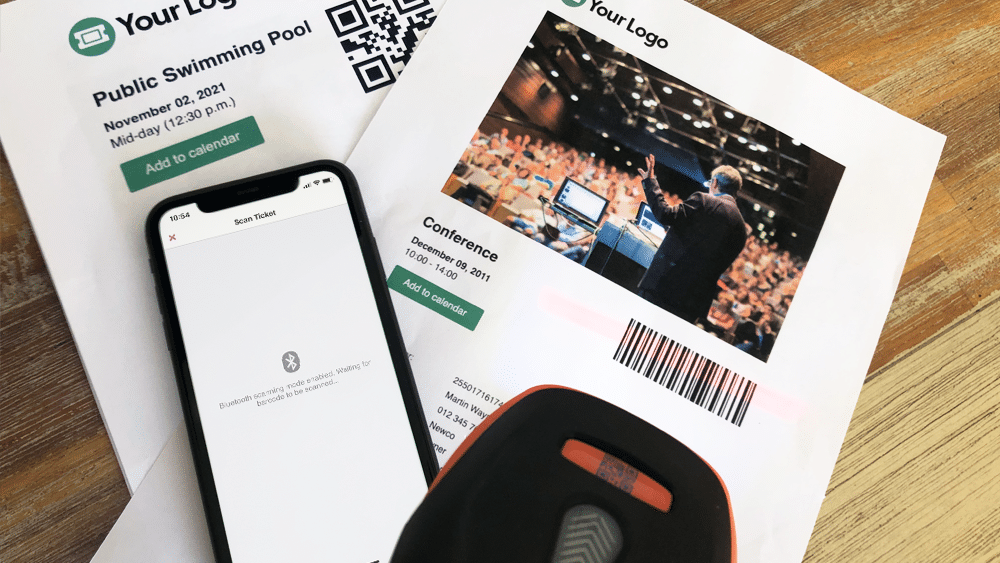
Um dos maiores desafios enfrentados pela maioria dos organizadores de eventos é a gestão do acesso dos participantes. Garantir um fluxo organizado e constante de check-ins de participantes é fundamental e, se não for feito de forma eficiente, pode levar a longas filas e clientes irritados. Para ajudar a acelerar o check-in dos participantes, o FooEvents adiciona automaticamente um código de barras único a cada bilhete. Estescódigo to each ticket. These barcodes represent a ticket ID and can be used by FooEvents to identify and check-in attendees at your event.

This article outlines everything you need to know in order to successfully scan barcodes and Código QRs using FooEvents.

  1. What are barcodes and Código QRs?
  2. Purchasing a scanner
  3. Connecting a barcódigo ou QR code scanner
  4. Configuring your scanner
  5. Digitalização de bilhetes
  6. Dicas de bónus
  7. Recursos de ajuda adicionais

1. What are barcodes and Código QRs?

Barcodes and Código QRs are simply images that represents alphanumeric values. The image is scanned using a scanner, which is essentially just an input device, much like a keyboard. When the scanner decodes the image to determine the value that the código represents, it sends the value back to your computer or mobile device. Using barcodes or Código QRs will save you from having to manually enter the ticket ID using a keyboard and will speed up check-ins and reduce the likelihood of human error.

Código de barras do Fooevents Vs Qrcode

While Código QRs do offer certain advantages over barcodes, in terms of scanning tickets generated by FooEvents, barcodes and Código QRs serve the same purpose. That said, you might find that Código QRs are easier to scan, especially in lowlight conditions, which would help to speed up attendee check-ins.

FooEvents uses barcodes by default but you can enable Código QRs via the main FooEvents settings. To do so, login to your Área de administração do WordPress, navegar para FooEvents > Definições > Design de bilhetes e assinalar a opção Ativar Código QRs.

2. Purchasing a scanner

There are a few things to consider when purchasing a scanner:

  • FooEvents supports both barcodes and Código QRs, however, not all scanners support both formats. It is important that you purchase a scanner that supports the format you will be using.
  • If you plan to use the scanner with the FooEvents Aplicações de check-ins on an iPhone, it is important that you purchase a Bluetooth scanner as iPhones do not support USB scanners.
  • If you plan to use the scanner with the FooEvents Check-ins apps on an Android device, it is important to check that the device supports Bluetooth or USB before purchasing the scanner.
  • Some scanners also support a wireless option that uses a USB wireless dongle. Be sure to first check that your device supports this before purchasing the scanner.
  • If you are using barcodes, ensure that the scanner supports 1D código-128 barcodes.
  • Ver o barcódigo e QR code scanners que recomendamos

3. Connecting a barcódigo ou QR code scanner

Bluetooth scanners

Bluetooth scanners are paired in the same manner as a Bluetooth speaker, headphone or keyboard. You will need to go to the Bluetooth settings on your device and ensure that Bluetooth is turned on. You can then find the Bluetooth scanner in the list of available Bluetooth devices. You will then need to connect/pair the scanner to the device.

Once connected, open a basic text editor application such as Notepad or TextEdit and scan the barcódigo ou Código QR to make sure that the device is working correctly.

1. Pair the Bluetooth scanner to your device

2. Scan any barcódigo ou Código QR

3. Ensure the código outputs to your device

USB scanners

USB scanners work in a similar way to USB keyboards. Plug the scanner into the USB port and you should be able to scan straight away. You can test to see if it is scanning correctly by opening a basic text editor application such as Notepad or TextEdit and then scan any barcódigo ou Código QR. When you scan a barcode, a number should display in the text editor which is what the barcódigo represents.

4. Configuring your scanner

Scanners are made by various manufacturers and come with different default factory settings. Your scanner should come with a manual or page that includes a series of barcodes. Each barcódigo will perform a different command when scanned which makes it possible to calibrate and configure your scanner conforme necessário.

Fooevents Exemplo de configuração de código de barras

This is an example of a scanner setup sheet. Setup differs depending on the manufacturer. If you have lost your setup sheet, try Googling the make and model of your particular device and add the term ‘Setup’ or ‘barcódigo setup sheet’.

Seguem-se algumas opções de configuração comuns que poderão ter de ser configuradas (variam consoante o fabricante):

  • Barcódigo encoding – Depending on your device, it might scan barcodes in a different format/encoding by default. Make sure that your barcode scanner is set to Code-128.
  • Ativar/desativar o novo retorno de linha – Be sure to configure your scanner so that it doesn’t add a new line when scanning a number. This might cause issues since the barcódigo numbers won’t match because of this extra character.
  • Língua – Make sure that the barcode scanner is set to the correct language or else it might return unexpected characters when scanning.

The best way to test if your scanner is scanning correctly, is to open a basic text editor application such as Notepad or TextEdit and scan a barcódigo ou Código QR to make sure that the output is correct.

Once you have connected and configured your scanner, you are ready to start scanning tickets.
5. Digitalização de bilhetes

Existem três formas de digitalizar bilhetes utilizando o FooEvents:

  1. FooEvents Aplicações de check-ins + câmara integrada no dispositivo
  2. FooEvents Aplicações de check-ins + Bluetooth scanner
  3. FooEvents Check-ins expresso + Bluetooth scanner or USB scanner

FooEvents Aplicações de check-ins + câmara integrada

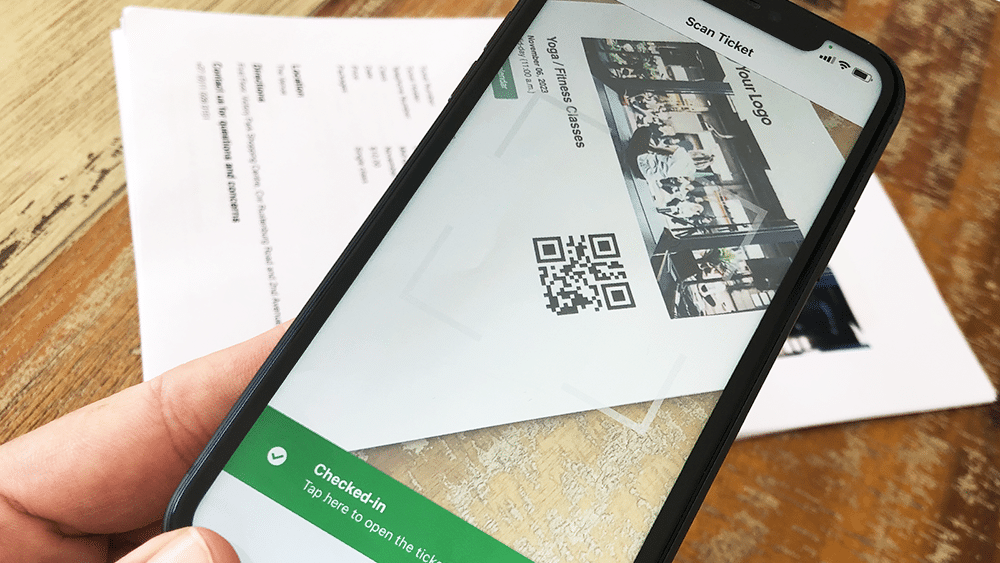
Utilizar o FooEvents Aplicações de check-ins pode digitalizar bilhetes utilizando a câmara incorporada no dispositivo. O vídeo seguinte demonstra como o fazer:

Fooevents Leitura de códigos de barras com câmara incorporada Sml

Digitalizar bilhetes utilizando a câmara incorporada no dispositivo

  1. Abrir a aplicação e ligar à sua loja
  2. Ativar o Funcionalidade de check-ins automáticos para acelerar os check-ins
  3. Navegar para o listagem de eventos ou selecionar o evento
  4. Selecionar o barcódigo ícone na parte inferior do ecrã e começar a digitalizar bilhetes
  5. É apresentada uma vista de câmara, segure o dispositivo aproximadamente 10cm - 30cm (4″ - 12″) above the barcódigo
  6. Digitalização o bilhete e check-in o participante
  7. Também é possível digitalizar bilhetes diretamente a partir do ecrã principal da aplicação. Isto irá procurar em todos os eventos um número de bilhete correspondente. Esta opção é útil se estiver a organizar vários eventos em simultâneo no mesmo local.

FooEvents Aplicações de check-ins + scanner Bluetooth

If you would like to use a Bluetooth scanner to scan tickets, you can connect it to your mobile device and enable the Bluetooth option in the FooEvents Aplicações de check-ins. O vídeo seguinte ilustra a forma de o fazer:

Fooevents Bluetooth Scanner 01

Scan tickets using a Bluetooth scanner

  1. Ligar o Bluetooth scanner para o seu dispositivo.
  2. Abrir o FooEvents Aplicação de check-ins e login
  3. Ir para a aplicação Definições
  4. Ativar a Bluetooth barcode scanner definição
  5. Navegar para o listagem de eventos ou selecionar o evento
  6. Selecionar o barcódigo ícone na parte inferior do ecrã e começar a digitalizar bilhetes

FooEvents Express Check-ins extension + Bluetooth or USB scanner:

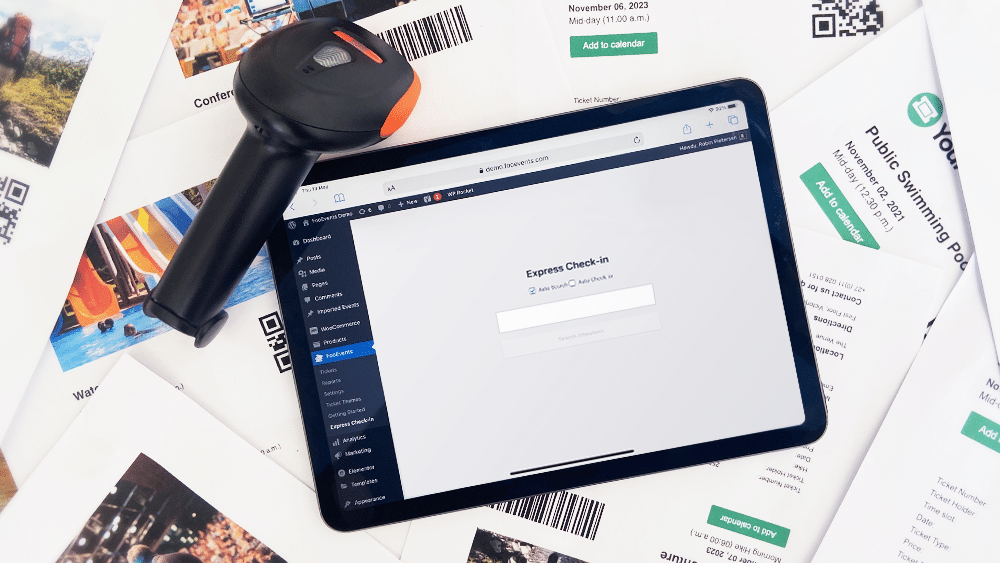
O FooEvents Check-in expresso plugin is an extension for FooEvents which makes it possible to search for attendees from your WordPress admin area using a paired Bluetooth or USB barcode scanner. You also have the option of automatically checking in attendees to further speed up the process. FooEvents Express Check-ins can be used on your desktop computer or on a tablet device with a connected barcode scanner. The following video illustrates how to connect a Bluetooth scanner to an iPad and scan tickets using the FooEvents Express Check-in interface.

Fooevents Scanner Ipad 1

Digitalize bilhetes no seu computador ou tablet

  1. Ligar um USB ou Bluetooth scanner para o seu computador de secretária
  2. Ir para o seu Área de administração do WordPress > FooEvents > Check-in expresso no browser do seu computador
  3. Ativar Pesquisa automática - A caixa de pesquisa apresenta automaticamente os dados à medida que os escreve
  4. Ativar Check-in automático - O participante será automaticamente marcado como "Registado" se for encontrada uma ID de bilhete que corresponda aos critérios de pesquisa. O objetivo é poupar tempo, especialmente quando se utiliza um leitor de códigos de barrascode scanner
  5. Colocar o cursor no caixa de texto
  6. Digitalizar um bilhete e o ID do bilhete será apresentado na caixa de texto

6. Dicas de bónus

    1. If you are experiencing difficulties using regular 1D barcodes, try using Código QRs, as they generally produce less scanning errors and can be printed smaller without any negative effects.
    2. Certifique-se de que existe luz e contraste suficientes durante a digitalização e tente evitar digitalizar em ambientes com pouca luz.
    3. Ensure the barcodes or Código QRs are not positioned too close to each other as they might confuse the scanner.
    4. Active a opção Check-in automático para acelerar o processo de validação de bilhetes.
    5. Teste, teste e volte a testar. Certifique-se de que compreende perfeitamente o fluxo de trabalho da caixa e de que é capaz de ler códigos de barras no ambiente do evento.
    6. Tudo pode acontecer, por isso, certifique-se de que tem um plano de reserva sólido. Dependendo da dimensão do seu evento, pode ser uma boa ideia exportar uma lista de todos os participantes e ter os dados disponíveis numa folha de cálculo, tanto em formato impresso como em papel. Isto pode salvar o dia se o seu telemóvel desaparecer, se houver uma falha de energia ou se a Internet deixar de funcionar.

7. Recursos de ajuda adicionais

Gostaríamos muito de ouvir os seus comentários, por isso entrar em contacto se tiveres alguma dúvida.

Subscrever o resumo do blogue

Receba um resumo das últimas mensagens na sua caixa de correio eletrónico.

Não foi possível submeter os seus dados. Por favor, tente novamente.
A sua inscrição foi efectuada com sucesso!

Utilizamos a Brevo como plataforma de marketing. Ao enviar este formulário, o utilizador aceita que os dados pessoais que forneceu sejam transferidos para a Brevo para serem processados de acordo com Política de privacidade do Brevo.

Carrinho de compras