Come scansionare i codici a barre dei biglietti e i codici QR utilizzando FooEvents e WooCommerce

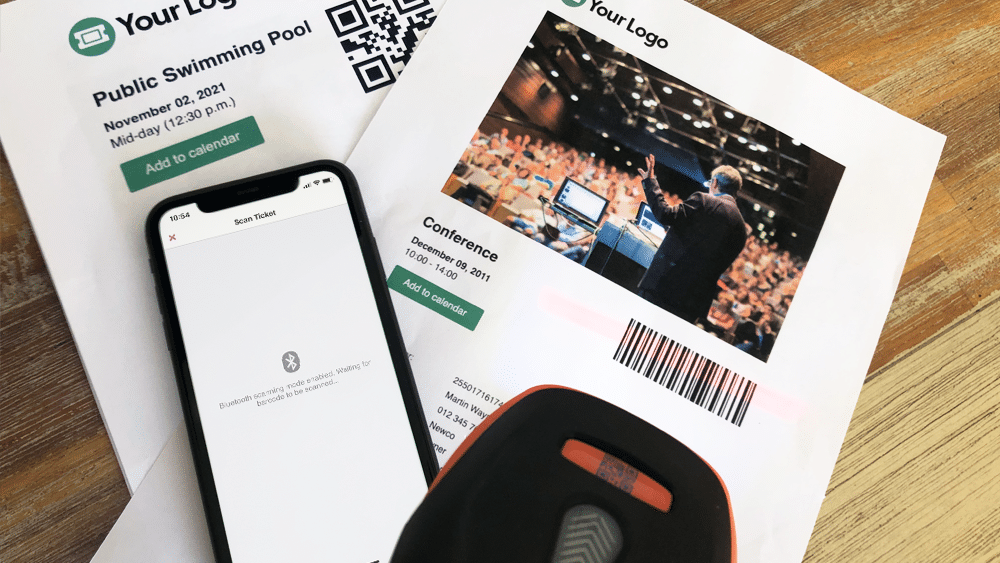
Scanner per codici a barre Fooevents Copertura

One of the biggest challenges experienced by most event organizers is managing attendee access. Ensuring an organized and steady flow of attendee check-ins is critical, and if not done efficiently, it could lead to lengthy lines and angry customers. To help speed up attendee check-ins, FooEvents automatically adds a unique barcodice to each ticket. These barcodes represent a ticket ID and can be used by FooEvents to identify and check-in attendees at your event.

This article outlines everything you need to know in order to successfully scan barcodes and Codice QRs using FooEvents.

  1. What are barcodes and Codice QRs?
  2. Purchasing a scanner
  3. Connecting a barcodice o QR code scanner
  4. Configuring your scanner
  5. Scansione dei biglietti
  6. Suggerimenti per i bonus
  7. Ulteriori risorse di aiuto

1. What are barcodes and Codice QRs?

Barcodes and Codice QRs are simply images that represents alphanumeric values. The image is scanned using a scanner, which is essentially just an input device, much like a keyboard. When the scanner decodes the image to determine the value that the codice represents, it sends the value back to your computer or mobile device. Using barcodes or Codice QRs will save you from having to manually enter the ticket ID using a keyboard and will speed up check-ins and reduce the likelihood of human error.

Codice a barre Fooevents Vs Qrcode

While Codice QRs do offer certain advantages over barcodes, in terms of scanning tickets generated by FooEvents, barcodes and Codice QRs serve the same purpose. That said, you might find that Codice QRs are easier to scan, especially in lowlight conditions, which would help to speed up attendee check-ins.

FooEvents uses barcodes by default but you can enable Codice QRs via the main FooEvents settings. To do so, login to your Area di amministrazione WordPress, navigare verso FooEvents > Impostazioni > Design del biglietto e selezionare l'opzione Abilitazione Codice QRs.

2. Purchasing a scanner

There are a few things to consider when purchasing a scanner:

  • FooEvents supports both barcodes and Codice QRs, however, not all scanners support both formats. It is important that you purchase a scanner that supports the format you will be using.
  • If you plan to use the scanner with the Applicazioni FooEvents Check-in on an iPhone, it is important that you purchase a Bluetooth scanner as iPhones do not support USB scanners.
  • If you plan to use the scanner with the FooEvents Check-ins apps on an Android device, it is important to check that the device supports Bluetooth or USB before purchasing the scanner.
  • Some scanners also support a wireless option that uses a USB wireless dongle. Be sure to first check that your device supports this before purchasing the scanner.
  • If you are using barcodes, ensure that the scanner supports 1D codice-128 barcodes.
  • Vedere il barcodice e QR code scanners che raccomandiamo

3. Connecting a barcodice o QR code scanner

Bluetooth scanners

Bluetooth scanners are paired in the same manner as a Bluetooth speaker, headphone or keyboard. You will need to go to the Bluetooth settings on your device and ensure that Bluetooth is turned on. You can then find the Bluetooth scanner in the list of available Bluetooth devices. You will then need to connect/pair the scanner to the device.

Once connected, open a basic text editor application such as Notepad or TextEdit and scan the barcodice o Codice QR to make sure that the device is working correctly.

1. Pair the Bluetooth scanner to your device

2. Scan any barcodice o Codice QR

3. Ensure the codice outputs to your device

USB scanners

USB scanners work in a similar way to USB keyboards. Plug the scanner into the USB port and you should be able to scan straight away. You can test to see if it is scanning correctly by opening a basic text editor application such as Notepad or TextEdit and then scan any barcodice o Codice QR. When you scan a barcode, a number should display in the text editor which is what the barcodice represents.

4. Configuring your scanner

Scanners are made by various manufacturers and come with different default factory settings. Your scanner should come with a manual or page that includes a series of barcodes. Each barcodice will perform a different command when scanned which makes it possible to calibrate and configure your scanner secondo le necessità.

Esempio di impostazione del codice a barre di Fooevents

This is an example of a scanner setup sheet. Setup differs depending on the manufacturer. If you have lost your setup sheet, try Googling the make and model of your particular device and add the term ‘Setup’ or ‘barcodice setup sheet’.

Di seguito sono riportate alcune opzioni di configurazione comuni che potrebbe essere necessario configurare (diverse da produttore a produttore):

  • Barcodice encoding – Depending on your device, it might scan barcodes in a different format/encoding by default. Make sure that your barcode scanner is set to Code-128.
  • Abilita/disabilita il ritorno di riga – Be sure to configure your scanner so that it doesn’t add a new line when scanning a number. This might cause issues since the barcodice numbers won’t match because of this extra character.
  • Lingua – Make sure that the barcode scanner is set to the correct language or else it might return unexpected characters when scanning.

The best way to test if your scanner is scanning correctly, is to open a basic text editor application such as Notepad or TextEdit and scan a barcodice o Codice QR to make sure that the output is correct.

Once you have connected and configured your scanner, you are ready to start scanning tickets.
5. Scansione dei biglietti

La scansione dei biglietti con l'FooEvents può avvenire in tre modi:

  1. Applicazioni FooEvents Check-in + fotocamera integrata del dispositivo
  2. Applicazioni FooEvents Check-in + Bluetooth scanner
  3. Check-in espresso FooEvents + Bluetooth scanner or USB scanner

FooEvents Applicazioni di check-in + fotocamera integrata

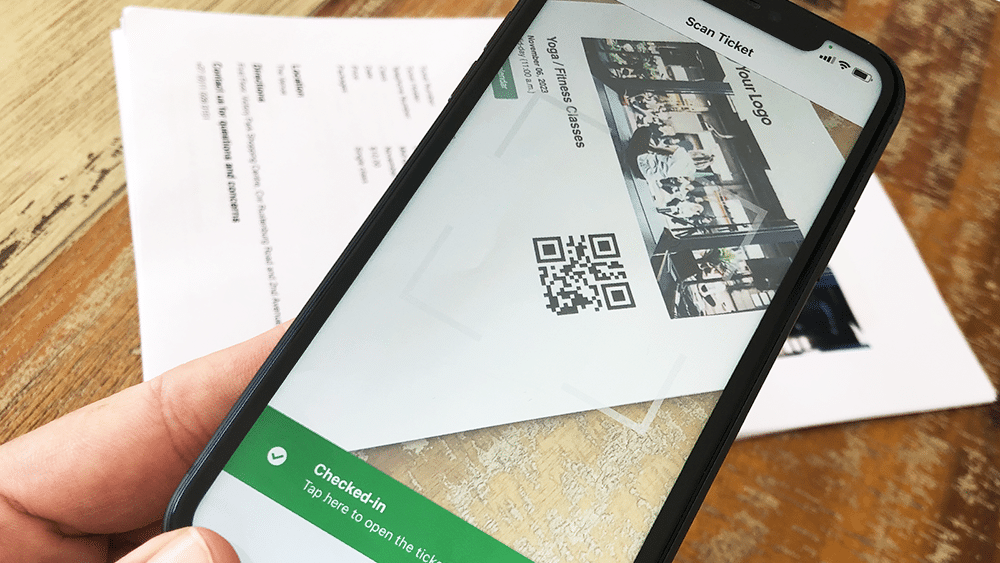
Utilizzando il Applicazioni FooEvents Check-in è possibile scansionare i biglietti utilizzando la fotocamera integrata del dispositivo. Il video seguente mostra come fare:

Fooevents Scansione di codici a barre con fotocamera incorporata Sml

Eseguire la scansione dei biglietti utilizzando la fotocamera integrata del dispositivo

  1. Aprire l'applicazione e connettersi al proprio negozio
  2. Abilitare il Funzione di check-in automatico per velocizzare i check-in
  3. Passare alla sezione elenco degli eventi o selezionare la voce pertinente evento
  4. Selezionare la voce barcodice icona nella parte inferiore dello schermo e iniziare a scansionare i biglietti
  5. Verrà visualizzata una vista della telecamera, tenere il dispositivo in mano circa 10 cm - 30 cm (4″ - 12″) above the barcodice
  6. Scansione il biglietto e check-in il partecipante
  7. È anche possibile scansionare i biglietti direttamente dalla schermata principale dell'applicazione. In questo modo si cercherà in tutti gli eventi un numero di biglietto corrispondente. Questa funzione è utile se si organizzano più eventi contemporaneamente nello stesso luogo.

FooEvents Applicazioni per il check-in + scanner Bluetooth

If you would like to use a Bluetooth scanner to scan tickets, you can connect it to your mobile device and enable the Bluetooth option in the Applicazioni FooEvents Check-in. Il video seguente illustra come fare:

Scanner Bluetooth Fooevents 01

Scan tickets using a Bluetooth scanner

  1. Collegare il Bluetooth scanner al dispositivo.
  2. Aprire la sezione App FooEvents Check-in e accesso
  3. Vai all'applicazione Impostazioni
  4. Abilitazione il Bluetooth barcode scanner impostazione
  5. Passare alla sezione elenco degli eventi o selezionare la voce pertinente evento
  6. Selezionare la voce barcodice icona nella parte inferiore dello schermo e iniziare a scansionare i biglietti

FooEvents Express Check-ins extension + Bluetooth or USB scanner:

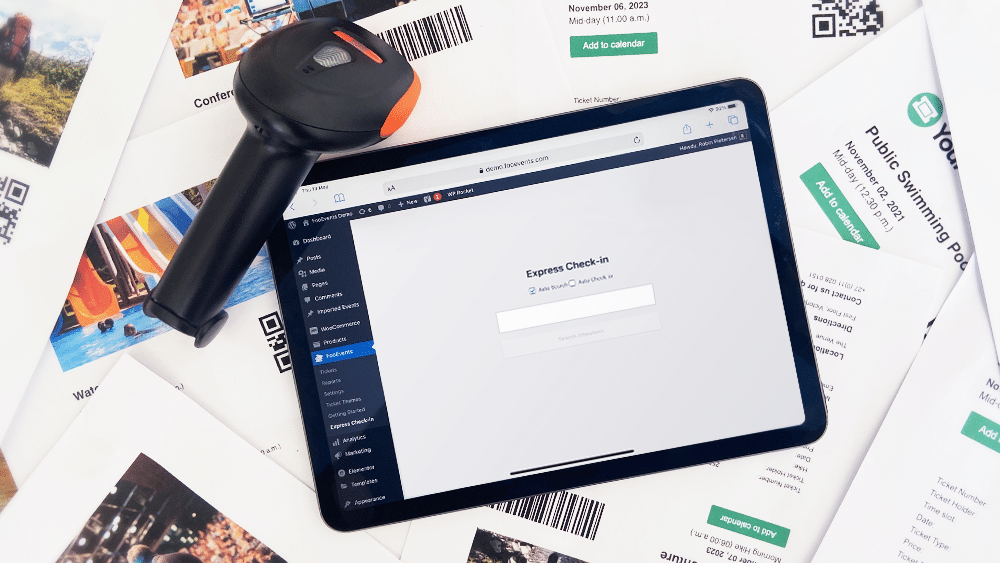
Il Check-in espresso FooEvents plugin is an extension for FooEvents which makes it possible to search for attendees from your WordPress admin area using a paired Bluetooth or USB barcode scanner. You also have the option of automatically checking in attendees to further speed up the process. FooEvents Express Check-ins can be used on your desktop computer or on a tablet device with a connected barcode scanner. The following video illustrates how to connect a Bluetooth scanner to an iPad and scan tickets using the FooEvents Express Check-in interface.

Scanner Fooevents Ipad 1

Scansione dei biglietti su desktop o tablet

  1. Collegare un USB o Bluetooth scanner al computer desktop
  2. Andate al vostro Area amministrativa WordPress > FooEvents > Check-in rapido nel browser desktop
  3. Abilitazione Ricerca automatica - La casella di ricerca visualizza automaticamente i dati man mano che vengono digitati.
  4. Abilitazione Check-in automatico - Il partecipante viene automaticamente contrassegnato come "Checked In" se viene trovato un ID biglietto che corrisponde ai criteri di ricerca. Ciò serve a risparmiare tempo, soprattutto quando si utilizza uno scanner di codici a barre.code scanner
  5. Posizionare il cursore nel campo casella di testo
  6. Scansione di un biglietto e l'ID del biglietto verrà visualizzato nella casella di testo

6. Suggerimenti per i bonus

    1. If you are experiencing difficulties using regular 1D barcodes, try using Codice QRs, as they generally produce less scanning errors and can be printed smaller without any negative effects.
    2. Assicurarsi che la luce e il contrasto siano sufficienti durante la scansione e cercare di evitare la scansione in ambienti con scarsa illuminazione.
    3. Ensure the barcodes or Codice QRs are not positioned too close to each other as they might confuse the scanner.
    4. Attivate l'opzione Auto Check-in per accelerare il processo di convalida dei biglietti.
    5. Testate, testate e testate ancora. Assicuratevi di aver compreso appieno il flusso di lavoro della cassa e di essere in grado di scansionare i codici a barre nell'ambiente dell'evento.
    6. Può succedere di tutto, quindi assicuratevi di avere un solido piano di riserva. A seconda delle dimensioni del vostro evento, potrebbe essere una buona idea esportare un elenco di tutti i partecipanti e avere a disposizione i dati come foglio di calcolo in formato cartaceo e cartaceo. Questo potrebbe salvare la situazione in caso di perdita del telefono, interruzione di corrente o interruzione di Internet.

7. Risorse di aiuto aggiuntive

Saremo lieti di ascoltare il vostro feedback, quindi vi preghiamo di contattaci se avete domande.

Iscriviti al blog digest

Ricevi un riepilogo degli ultimi post nella tua casella di posta elettronica.

Non è stato possibile inviare i dati. Si prega di riprovare.
L'iscrizione è avvenuta con successo!

Utilizziamo Brevo come piattaforma di marketing. Inviando questo modulo accettate che i dati personali da voi forniti siano trasferiti a Brevo per essere elaborati in conformità a Informativa sulla privacy di Brevo.

Carrello