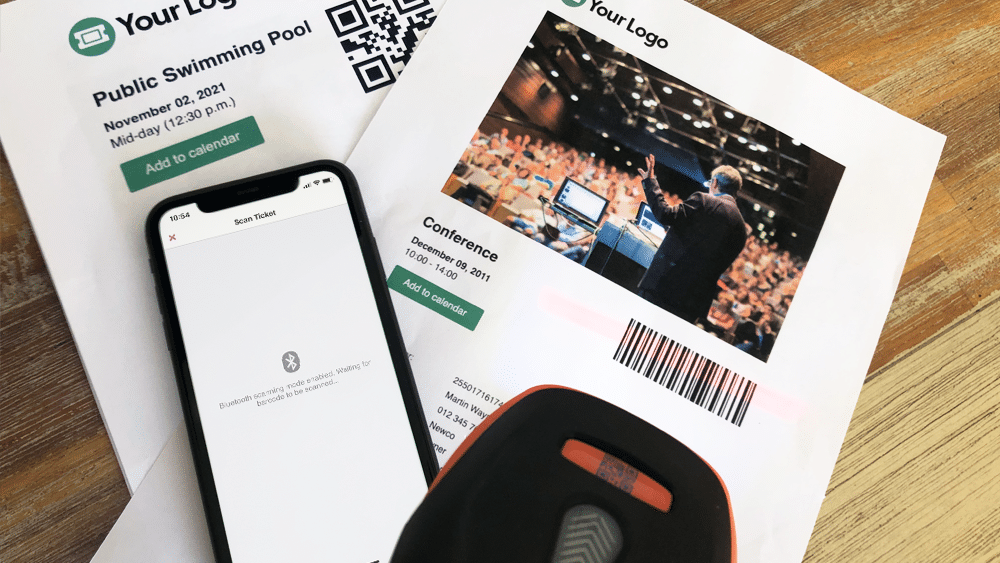
One of the biggest challenges experienced by most event organizers is managing attendee access. Ensuring an organized and steady flow of attendee check-ins is critical, and if not done efficiently, it could lead to lengthy lines and angry customers. To help speed up attendee check-ins, FooEvents automatically adds a unique barkod to each ticket. These barcodes represent a ticket ID and can be used by FooEvents to identify and check-in attendees at your event.
This article outlines everything you need to know in order to successfully scan barcodes and Kod QRs using FooEvents.
- What are barcodes and Kod QRs?
- Purchasing a skaner
- Connecting a barkod lub QR code scanner
- Configuring your skaner
- Skanowanie biletów
- Dodatkowe wskazówki
- Dodatkowe zasoby pomocy
1. What are barcodes and Kod QRs?
Barcodes and Kod QRs are simply images that represents alphanumeric values. The image is scanned using a skaner, which is essentially just an input device, much like a keyboard. When the skaner decodes the image to determine the value that the kod represents, it sends the value back to your computer or mobile device. Using barcodes or Kod QRs will save you from having to manually enter the ticket ID using a keyboard and will speed up check-ins and reduce the likelihood of human error.
While Kod QRs do offer certain advantages over barcodes, in terms of scanning tickets generated by FooEvents, barcodes and Kod QRs serve the same purpose. That said, you might find that Kod QRs are easier to scan, especially in lowlight conditions, which would help to speed up attendee check-ins.
FooEvents uses barcodes by default but you can enable Kod QRs via the main FooEvents settings. To do so, login to your Obszar administracyjny WordPress, przejdź do FooEvents > Ustawienia > Projekt biletu i zaznaczyć opcję Włącz Kod QRs.
2. Purchasing a skaner
There are a few things to consider when purchasing a skaner:
- FooEvents supports both barcodes and Kod QRs, however, not all skaners support both formats. It is important that you purchase a skaner that supports the format you will be using.
- If you plan to use the skaner with the Aplikacje FooEvents Check-ins on an iPhone, it is important that you purchase a Bluetooth skaner as iPhones do not support USB skaners.
- If you plan to use the skaner with the FooEvents Check-ins apps on an Android device, it is important to check that the device supports Bluetooth or USB before purchasing the skaner.
- Some skaners also support a wireless option that uses a USB wireless dongle. Be sure to first check that your device supports this before purchasing the skaner.
- If you are using barcodes, ensure that the skaner supports 1D kod-128 barcodes.
- Zob. barkod i QR code scanners które zalecamy
3. Connecting a barkod lub QR code scanner
Bluetooth skaners
Bluetooth skaners are paired in the same manner as a Bluetooth speaker, headphone or keyboard. You will need to go to the Bluetooth settings on your device and ensure that Bluetooth is turned on. You can then find the Bluetooth skaner in the list of available Bluetooth devices. You will then need to connect/pair the skaner to the device.
Once connected, open a basic text editor application such as Notepad or TextEdit and scan the barkod lub Kod QR to make sure that the device is working correctly.
USB skaners
USB skaners work in a similar way to USB keyboards. Plug the skaner into the USB port and you should be able to scan straight away. You can test to see if it is scanning correctly by opening a basic text editor application such as Notepad or TextEdit and then scan any barkod lub Kod QR. When you scan a barcode, a number should display in the text editor which is what the barkod represents.
4. Configuring your skaner
Skaners are made by various manufacturers and come with different default factory settings. Your skaner should come with a manual or page that includes a series of barcodes. Each barkod will perform a different command when scanned which makes it possible to calibrate and configure your skaner w razie potrzeby.

This is an example of a skaner setup sheet. Setup differs depending on the manufacturer. If you have lost your setup sheet, try Googling the make and model of your particular device and add the term ‘Setup’ or ‘barkod setup sheet’.
Oto kilka typowych opcji konfiguracji, które mogą wymagać konfiguracji (różnią się w zależności od producenta):
- Barkod encoding – Depending on your device, it might scan barcodes in a different format/encoding by default. Make sure that your barcode scanner is set to Code-128.
- Włączenie/wyłączenie powrotu nowej linii – Be sure to configure your skaner so that it doesn’t add a new line when scanning a number. This might cause issues since the barkod numbers won’t match because of this extra character.
- Język – Make sure that the barcode scanner is set to the correct language or else it might return unexpected characters when scanning.
The best way to test if your skaner is scanning correctly, is to open a basic text editor application such as Notepad or TextEdit and scan a barkod lub Kod QR to make sure that the output is correct.
Once you have connected and configured your skaner, you are ready to start scanning tickets.
5. Skanowanie biletów
Istnieją trzy sposoby skanowania biletów za pomocą FooEvents:
- Aplikacje FooEvents Check-ins + wbudowana kamera urządzenia
- Aplikacje FooEvents Check-ins + Bluetooth skaner
- Ekspresowe odprawy FooEvents + Bluetooth skaner or USB skaner
Aplikacje FooEvents Check-ins + wbudowana kamera
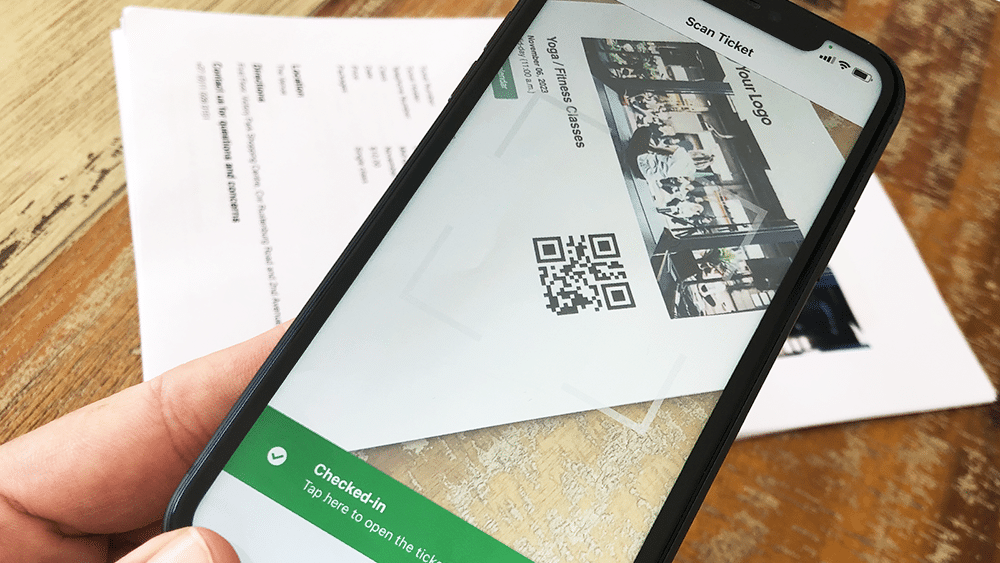
Korzystanie z Aplikacje FooEvents Check-ins można skanować bilety za pomocą wbudowanej kamery urządzenia. Poniższy film pokazuje, jak to zrobić:
Skanowanie biletów za pomocą wbudowanej kamery urządzenia
- Otwórz aplikację i połączyć się ze sklepem
- Włącz Funkcja automatycznego meldowania się aby przyspieszyć odprawy
- Przejdź do lista wydarzeń lub wybrać odpowiedni wydarzenie
- Wybierz barkod ikona w dolnej części ekranu i rozpocząć skanowanie biletów
- Wyświetlony zostanie widok z kamery, przytrzymaj urządzenie w przybliżeniu 10cm - 30cm (4″ - 12″) above the barkod
- Skanowanie bilet i odprawa uczestnik
- Bilety można również skanować bezpośrednio z ekranu głównego aplikacji. Spowoduje to przeszukanie wszystkich wydarzeń pod kątem pasującego numeru biletu. Jest to przydatne w przypadku jednoczesnego organizowania wielu wydarzeń w tej samej lokalizacji.
Aplikacje FooEvents Check-ins + skaner Bluetooth
If you would like to use a Bluetooth skaner to scan tickets, you can connect it to your mobile device and enable the Bluetooth option in the Aplikacje FooEvents Check-ins. Poniższy film ilustruje, jak to zrobić:
Scan tickets using a Bluetooth skaner
- Podłącz Bluetooth skaner do urządzenia.
- Otwórz Aplikacja FooEvents Check-ins i login
- Przejdź do aplikacji Ustawienia
- Włącz w Bluetooth barcode scanner ustawienie
- Przejdź do lista wydarzeń lub wybrać odpowiedni wydarzenie
- Wybierz barkod ikona w dolnej części ekranu i rozpocząć skanowanie biletów
FooEvents Express Check-ins extension + Bluetooth or USB skaner:
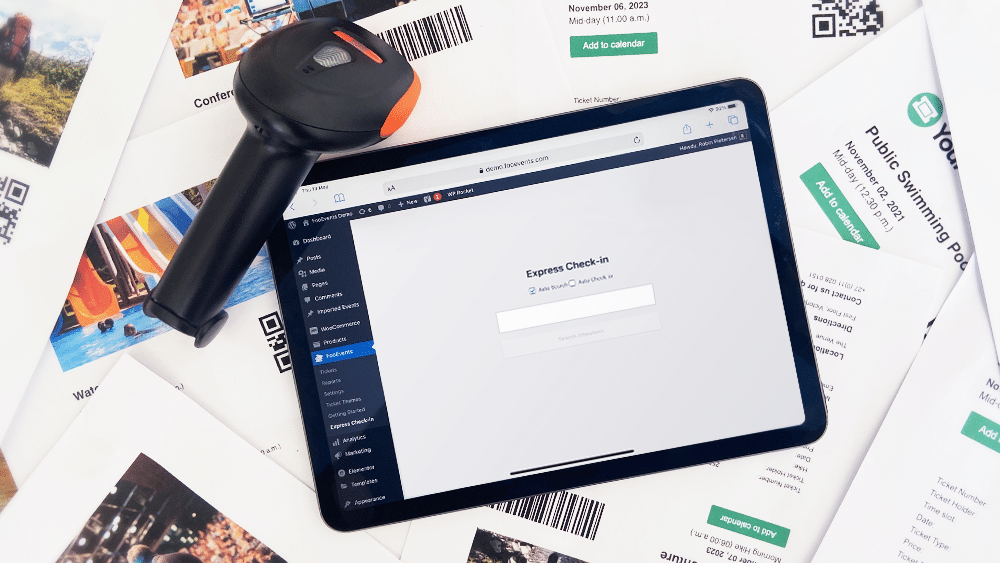
The Ekspresowa odprawa FooEvents plugin is an extension for FooEvents which makes it possible to search for attendees from your WordPress admin area using a paired Bluetooth or USB barcode scanner. You also have the option of automatically checking in attendees to further speed up the process. FooEvents Express Check-ins can be used on your desktop computer or on a tablet device with a connected barcode scanner. The following video illustrates how to connect a Bluetooth skaner to an iPad and scan tickets using the FooEvents Express Check-in interface.
Skanowanie biletów na komputerze lub tablecie
- Podłącz USB lub Bluetooth skaner do komputera stacjonarnego
- Przejdź do Obszar administracyjny WordPress > FooEvents > Ekspresowa odprawa w przeglądarce na komputerze
- Włącz Automatyczne wyszukiwanie - Pole wyszukiwania automatycznie wyświetli dane podczas wpisywania
- Włącz Automatyczna odprawa - Uczestnik zostanie automatycznie oznaczony jako "zameldowany", jeśli zostanie znaleziony identyfikator biletu spełniający kryteria wyszukiwania. Ma to na celu zaoszczędzenie czasu, zwłaszcza w przypadku korzystania ze skanera kodów kreskowychcode scanner
- Umieść kursor w polu pole tekstowe
- Skanowanie biletu a identyfikator biletu zostanie wyświetlony w polu tekstowym
6. Wskazówki bonusowe
- If you are experiencing difficulties using regular 1D barcodes, try using Kod QRs, as they generally produce less scanning errors and can be printed smaller without any negative effects.
- Upewnij się, że podczas skanowania jest wystarczająco dużo światła i kontrastu oraz staraj się unikać skanowania w warunkach słabego oświetlenia.
- Ensure the barcodes or Kod QRs are not positioned too close to each other as they might confuse the skaner.
- Włącz opcję automatycznej odprawy, aby przyspieszyć proces weryfikacji biletów.
- Testuj, testuj i jeszcze raz testuj. Upewnij się, że w pełni rozumiesz przepływ pracy przy kasie i że jesteś w stanie skanować kody kreskowe w środowisku wydarzenia.
- Wszystko może się zdarzyć, więc upewnij się, że masz solidny plan awaryjny. W zależności od wielkości wydarzenia, dobrym pomysłem może być eksport listy wszystkich uczestników i mieć dostęp do danych w formie arkusza kalkulacyjnego zarówno w formacie drukowanym, jak i papierowym. Może to uratować sytuację w przypadku utraty telefonu, awarii zasilania lub Internetu.
7. Dodatkowe zasoby pomocy
- How do I remove barcodes/QR codes from tickets?
- Why are barcodes, Kod QRs, logos or other images not being generated and displayed in tickets?
- Kody kreskowe biletów
- Skanowanie biletów
- Skanowanie biletów za pomocą aplikacji
- Barcode scanners
- Ticket Kod QRs
- Czy uczestnicy muszą wydrukować bilety na moje wydarzenie?
- Recommended barkod i QR code scanners
Chcielibyśmy poznać Twoją opinię, więc prosimy Skontaktuj się w razie jakichkolwiek pytań.