
In this guide, we will show you how to use WooCommerce and FooEvents to sell tickets for concerts and multi-day festivals, covering ticket setup, capacity, attendee management, check-ins and on-site sales.
Selling tickets for a concert is easy. Running the ticketing operation around it is where things get complicated.
You might need different ticket types, multiple event dates, merchandise, parking, attendee verification, capacity controls, ticket scanning, re-entry and on-site sales. For larger festivals, all of those moving parts need to work together without creating a patchwork of separate systems or adding fees to every ticket sold.
WooCommerce and FooEvents give you a way to bring those parts together on your own WordPress website, so you can keep more control over your ticket sales, event data, customer experience and costs as your event grows.
What we’ll cover
- Plan your concert or festival ticketing setup
- Set up festival tickets, capacity and pricing
- Manage attendees, tickets and merchandise
- Prepare for event-day check-ins and access
- Handle on-site sales and reporting
- Test your ticketing setup before the event
Build your ticketing around the way your event actually works
Live music events come in many forms, from one-night concerts, club shows and album launches to theatre performances, concert tours, outdoor shows, seated performances and large multi-stage or weekend festivals.
The right ticket structure depends on what you are selling and how attendees will use their tickets.

A small concert might only require General Admission and VIP tickets. A festival could involve Weekend Passes and individual day tickets, different access levels, pricing phases, camping, parking, merchandise, multiple entrances, re-entry, and on-site ticket sales.
Plan this structure before tickets go on sale. Once customers have started purchasing, changing dates, access rules, or stock allocations becomes considerably more difficult.
Why use WooCommerce for concert and festival ticket sales?

WooCommerce is best known for ecommerce, but its product and order system also provides a strong foundation for event ticketing.
With FooEvents for WooCommerce installed, a WooCommerce product can become a ticketed event.
You can use WooCommerce to:
- Sell tickets directly from your own website.
- Accept payments through compatible payment gateways.
- Create coupons and promotions.
- Manage taxes and currencies.
- Offer multiple ticket variations.
- Control ticket stock.
- Manage customer orders and refunds.
- Sell merchandise alongside tickets.
- Review sales and revenue.
FooEvents adds attendee management, event details, ticket generation, QR codes, barcodes, and check-ins.
This means the complete customer journey can take place on your website. Fans can discover the event, compare ticket options, make a purchase, and receive their tickets without being redirected to an unrelated ticket marketplace.
FooEvents does not charge a commission or additional fee for each ticket sold. Your normal hosting, plugin licensing, and payment gateway costs still apply. Explore FooEvents for WooCommerce.
Make your event page part of the ticket-buying experience
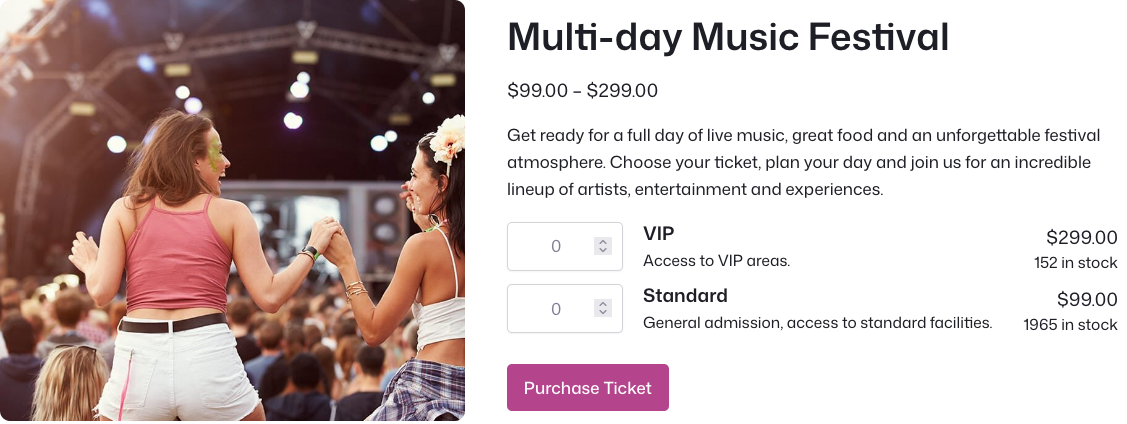
Your event page needs to do more than display a price and an Add to Cart button.
It should give potential attendees enough information to understand the event, choose the correct ticket, and know what to expect when they arrive.
Include information such as:
- Artist or festival name.
- Event date and opening times.
- Venue and address.
- Age restrictions.
- Lineup or supporting acts.
- Set times, where available.
- Ticket options and what each includes.
- Accessibility information.
- Parking and transport information.
- Entry and re-entry rules.
- Refund or transfer policies.
- Prohibited items.
- Contact information.
For festivals, make the differences between Weekend, Friday, Saturday, and Sunday passes immediately clear.
If you sell VIP tickets, explain exactly what VIP means. Depending on the event, this could include a dedicated entrance, priority admission, premium viewing area, lounge access, parking, food or drink vouchers, merchandise, or hospitality.
Clear ticket descriptions reduce questions before the event and help avoid disputes at the gate.
Create ticket types with WooCommerce variations
WooCommerce variations are useful when several ticket types provide access to the same event.
For example, you could create a Ticket Type attribute with two options, General Admission and VIP.

Each variation can have its own price, SKU, sale price, stock quantity, description, and availability.
You could therefore sell 4,000 General Admission tickets and 200 VIP tickets for the same concert while managing their availability separately.
FooEvents can also display supported event variations in a table, helping customers compare ticket types, prices, and availability. Learn about FooEvents product variations.
Variations work well for different access levels. They are not always the right way to represent different event dates, which becomes especially important when selling festival tickets.
Set up festival tickets, capacity and pricing
Structure multi-day festival tickets correctly
Consider a festival that takes place on Friday, Saturday, and Sunday.
It sells Weekend Passes as well as individual Friday, Saturday, and Sunday tickets, with both General Admission and VIP options.
A practical WooCommerce structure could look like this:
| Product | Event configuration | Variations | Access |
|---|---|---|---|
| Weekend Pass | Multi-day event | General Admission and VIP | Friday, Saturday, and Sunday |
| Friday Pass | Single-day event | General Admission and VIP | Friday only |
| Saturday Pass | Single-day event | General Admission and VIP | Saturday only |
| Sunday Pass | Single-day event | General Admission and VIP | Sunday only |
| Festival T-shirt | Standard WooCommerce product | Size and colour | Merchandise |
| Parking or camping | Standard product or separate event | As required | Additional access or service |
The important distinction is that event dates are configured at the product level.
Use separate products for individual festival days
It may seem easier to create one festival product with Friday, Saturday, and Sunday variations. However, each variation still inherits the event dates configured for the main product.
If the main product is configured as a three-day event, a Friday variation would still be associated with the complete three-day event.
A cleaner approach is to:
- Create one Multi-day event for the Weekend Pass.
- Create separate Single-day event products for Friday, Saturday, and Sunday.
- Use variations within those products for General Admission and VIP.
This gives each ticket the correct event dates and makes it easier for entrance staff to validate the right pass. The FooEvents multi-day festival ticketing use case provides a complete configuration example.
Configure Weekend Passes as multi-day tickets
FooEvents Multi-day is designed for tickets that provide access across several event days.
For a three-day Weekend Pass, configure the product as a Multi-day event with Friday, Saturday, and Sunday as the event dates. If you offer both General Admission and VIP access, those can be configured as WooCommerce variations within the same product.
Use sequential days when the event runs on consecutive dates and specific days when there are gaps between event dates.
A Weekend Pass can then have a separate check-in status for each configured day. The same ticket can be checked in on Friday, Saturday, and Sunday without being permanently used after the first scan.
Plan capacity across Weekend Passes and day tickets
Capacity becomes more complicated when Weekend Passes and individual day tickets are sold as separate products.
FooEvents uses WooCommerce stock management to control ticket availability. Stock can be managed for the complete product or individually for each variation. Read about FooEvents stock management.
However, separate Weekend and day-pass products do not automatically draw from one shared daily capacity. Your team therefore needs to decide how much of the venue capacity will be allocated to each product.
Imagine the festival can accommodate 10,000 people per day, including a maximum of 500 VIP attendees.
| Access | Weekend Pass allocation | Day-pass allocation per day | Maximum daily attendance |
|---|---|---|---|
| General Admission | 5,500 | 4,000 | 9,500 |
| VIP | 300 | 200 | 500 |
| Total | 5,800 | 4,200 | 10,000 |
Every Weekend Pass sold consumes capacity on all three days. A Saturday Pass only consumes capacity on Saturday.
For every festival day, make sure that:
Weekend Passes sold + day passes sold for that date do not exceed the venue’s daily capacity.
The same principle applies to restricted areas such as VIP enclosures, campsites, parking areas, and viewing platforms.
Set your allocations before sales begin, monitor them regularly, and document manual stock adjustments. A spreadsheet or reporting dashboard can help your team compare sales across separate products against the venue’s real capacity.
Use pricing phases without accidentally overselling
Early Bird, Standard, and Last Chance pricing can encourage customers to purchase sooner, but each pricing phase still draws from the same physical venue capacity.
If you create several independently stocked pricing variations, you can accidentally make more tickets available than the venue can accommodate.
There are two straightforward ways to avoid this.
Allocate stock to each pricing phase
Divide the total allocation between the phases. For example:
- 500 Early Bird tickets.
- 2,500 Standard tickets.
- 1,000 Last Chance tickets.
Release each phase sequentially.
Change the price of the existing ticket
If every pricing phase provides exactly the same access, you can keep one General Admission variation and change its regular or scheduled sale price as the event approaches.
Whichever method you use, the combined number of available tickets must remain within the capacity allocated to that ticket type.
Manage attendees, tickets and merchandise
Collect details for the people who are actually attending
The customer paying for the order is not necessarily the person attending the event.
Someone may purchase tickets for a partner, a group of friends, or their family. A business may buy several VIP tickets for clients.
FooEvents can collect attendee information for every ticket rather than relying only on the purchaser’s WooCommerce billing details.
Standard attendee details can include name, email address, telephone number, company, and designation.
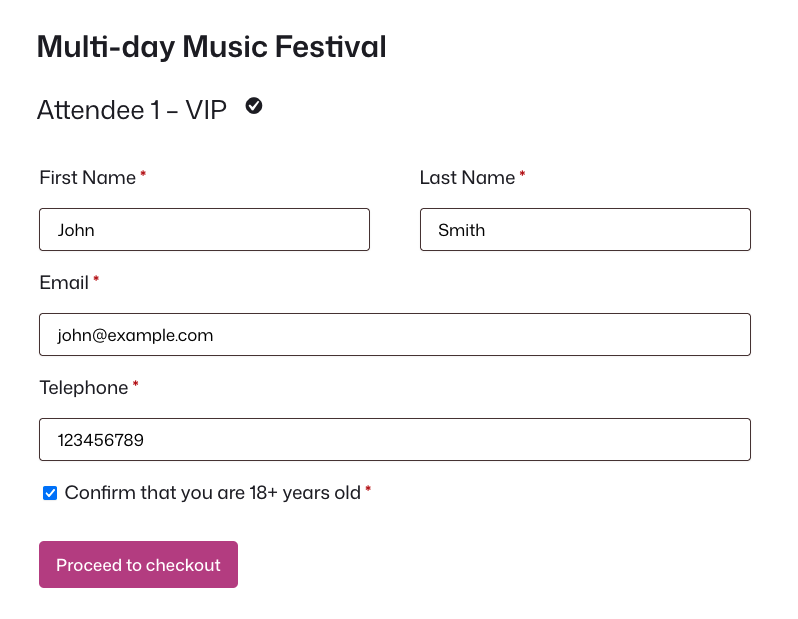
With FooEvents Custom Attendee Fields, you can also collect event-specific information such as:
- Emergency contact information.
- Accessibility requirements.
- Dietary requirements.
- Age confirmation.
- Parent or guardian information.
- T-shirt sizes.
- Acceptance of event terms or waivers.
- Optional marketing consent.
Only collect information that your team genuinely needs. Sensitive attendee information should be available only to staff who require it, and optional marketing consent should remain separate from mandatory event terms. See how to configure custom attendee fields.
If tickets are emailed directly to attendees rather than only to the purchaser, make the attendee email address required so each ticket has a reliable delivery address.
Sell tickets, merchandise, and extras from the same store
One advantage of using WooCommerce is that your event website can sell normal ecommerce products alongside tickets.
A festival store might sell:
- T-shirts and hoodies.
- Posters and souvenir programmes.
- Merchandise bundles.
- Parking or camping passes.
- Locker rentals.
- Shuttle tickets.
- Meal or drink vouchers.
Use regular WooCommerce products when an item is purchased and fulfilled like normal merchandise. Use event products when something needs its own ticket or independently controlled access.
For example, if every VIP ticket includes a free T-shirt, a custom attendee field could collect the required size. If the T-shirt is purchased separately, it should be a WooCommerce product with its own price and stock.
Likewise, if a camping pass needs to be scanned at a separate entrance, it may make more sense to create it as its own FooEvents event product.
A useful rule: if something has its own price, stock level, or separate access requirement, treat it as a proper product.
Make sure merchandise does not delay ticket delivery
Ticket and merchandise orders can behave differently inside WooCommerce.
By default, FooEvents generates and sends tickets when an order reaches the configured ticket-generation status. For ticket-only purchases, this can happen shortly after payment.
Mixed orders need more attention.
If an order includes both a festival ticket and a physical T-shirt, WooCommerce may keep the order in Processing while the physical item is being fulfilled. If FooEvents is configured to wait for Completed, the customer may not receive their ticket immediately.
Before opening sales:
- Review the FooEvents ticket-generation order status.
- Make sure tickets are only generated after successful payment.
- Test ticket-only purchases.
- Test merchandise-only purchases.
- Test orders containing both tickets and merchandise.
- Repeat these tests for every supported payment method.
You should also use a reliable authenticated email service and test ticket delivery before tickets go on sale.
Send tickets that work at the gate
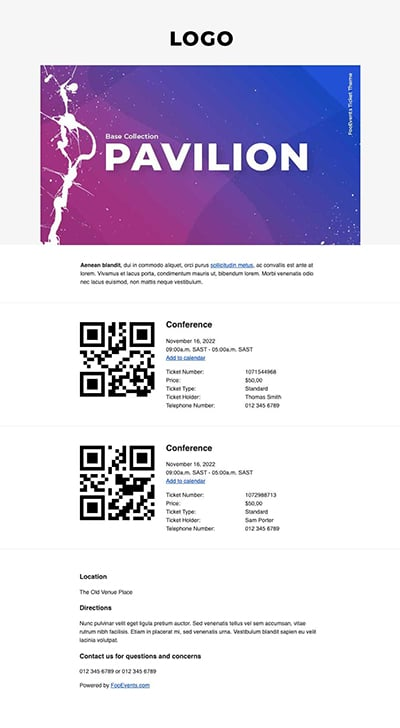
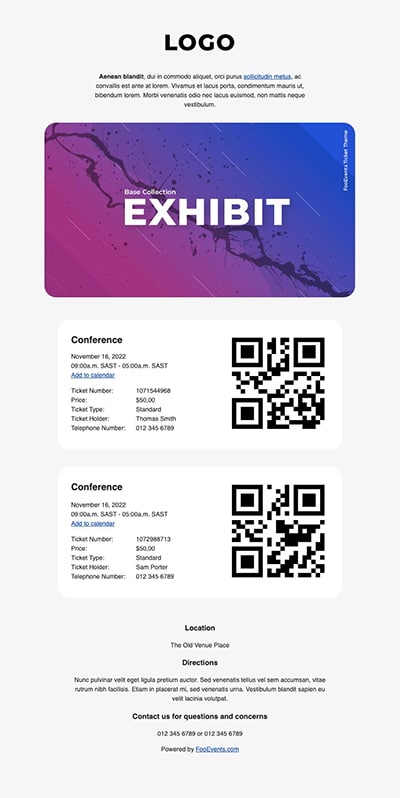
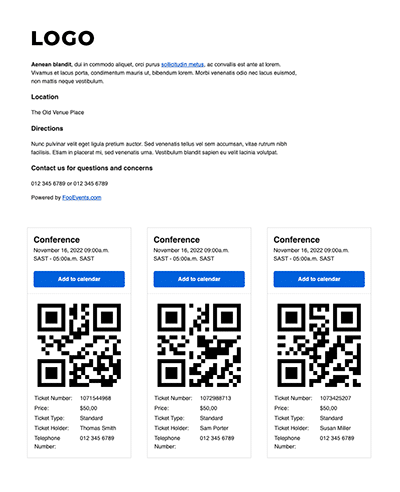
FooEvents can send branded HTML tickets, styled using FooEvents Ticket Themes, containing information such as:
- Event or festival name.
- Attendee information.
- Event dates.
- Ticket type and access level.
- Venue information.
- Arrival instructions.
- A unique QR code or barcode.
- Add-to-calendar options.
FooEvents PDF Tickets can also provide a downloadable PDF version.
Design tickets with mobile use in mind. Many attendees will arrive with their ticket displayed on a phone, potentially with poor connectivity, low screen brightness, and a queue forming behind them.
Make the ticket type, valid dates, entrance instructions, QR code or barcode, identification requirements, and support information easy to find.
It is also worth encouraging attendees to download their tickets before travelling to the venue.
Prepare for event-day check-ins and access
Plan the entrance before the gates open
Fast scanning helps, but a ticketing system cannot compensate for an unclear entrance process.
For a large event, consider separate areas for:
- General Admission.
- VIP or priority entry.
- Customer service and ticket problems.
- New ticket purchases.
- Guest list and media collections.
- Merchandise collection.
Keep slower activities such as ticket purchases, payment problems, and attendee information changes away from the main scanning lanes.
Before gates open, make sure every check-in device is signed in, charged, connected, and has access to the required event and attendee information.
Scan tickets across multiple entrances
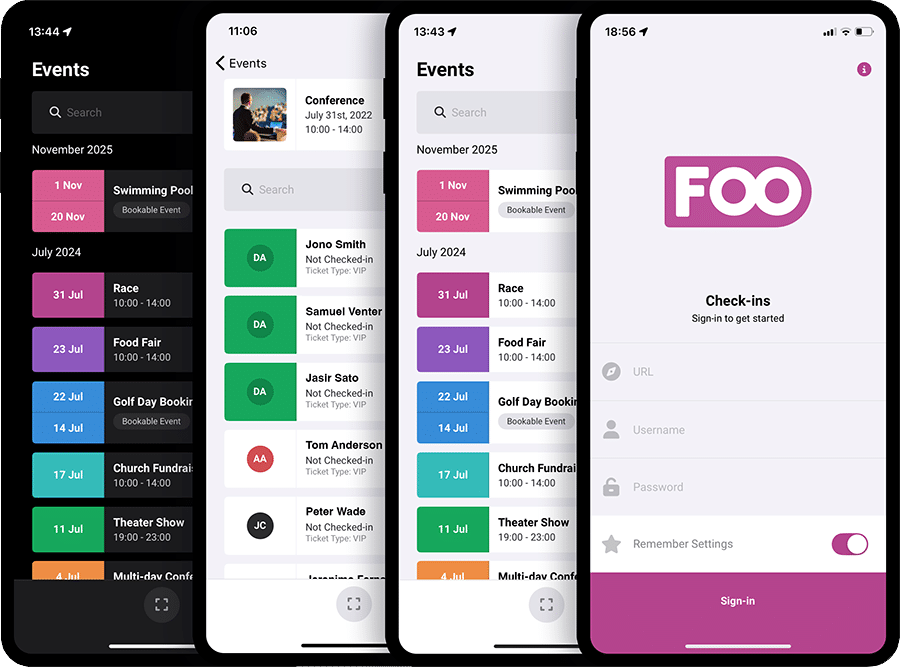
The free FooEvents Check-ins app can scan the QR code or barcode on a ticket and update its check-in status. Staff can also search for an attendee manually if a ticket cannot be scanned. Explore the FooEvents Check-ins app.
Where possible, keep entrance devices online.
This allows check-in information to update across devices, reducing the chance that the same ticket is accepted at multiple entrances.
At entrances that accept several ticket products, staff can scan from the event listing rather than remaining inside one individual event. Auto Check-in can also return the operator directly to the scanner after a successful check-in, helping improve throughput during busy arrival periods.
Check Weekend Passes against the correct day
A Weekend Pass has a separate check-in status for every configured festival day.
Before opening each day:
- Confirm that the correct Multi-day check-in day is selected.
- Use automatic current-date selection where appropriate.
- Scan a test ticket.
- Confirm that the correct day was updated.
- Confirm that the pass remains valid for later festival days.
A short test before gates open is far easier to deal with than discovering after hundreds of arrivals that tickets were checked in against the wrong day.
Train staff to handle incorrect day passes
The Check-ins app can warn staff when the ticket date does not match the date on the device and allow the operator to cancel or override the check-in.
Your entrance staff should understand what that warning means, when a ticket should be rejected, when an override is permitted, and where to send an attendee when the issue cannot be resolved at the gate.
Clear escalation rules prevent exceptions from blocking the main queue.
Use physical credentials for repeated VIP access or re-entry
Some access rules are easier to manage with a combination of digital tickets and physical credentials.

For example, a VIP attendee might enter and leave a VIP area several times during the day. Repeatedly changing the same ticket’s check-in status is not an ideal way to manage that movement.
A more practical process is to validate the ticket once, confirm the attendee’s access level, and issue a clearly identifiable wristband or other difficult-to-transfer credential for repeated access.
The same approach can work for event re-entry. If attendees are allowed to leave and return, define the process before ticket sales open and communicate it clearly on the event page, tickets, and entrance signage.
Use offline check-ins as a fallback, not the main plan
The FooEvents Check-ins app can process check-ins without an active internet connection using Offline Mode, provided the event and attendee information has already been loaded onto the device.
Offline changes can then be synchronized when connectivity returns.
This is useful as a contingency, but there is an important limitation at events with several entrances: offline devices operate independently.
If the same ticket is presented at two entrances while both devices are offline, neither device knows that the other has already accepted it.
A resilient event setup should therefore include:
- Reliable event Wi-Fi at entrances.
- A secondary internet connection where possible.
- Backup power for networking equipment.
- Event and attendee information preloaded onto devices.
- Offline Mode prepared for emergencies.
- A process for operating entrances if connectivity fails.
- Synchronization as soon as connectivity returns.
Handle on-site sales and reporting

Sell tickets and merchandise at the venue
FooEvents POS connects to the same WooCommerce store and can be used at a festival box office or merchandise stand.
Your team can sell day passes, available ticket upgrades, merchandise, parking, camping, meal products, and other WooCommerce items.
FooEvents POS can also capture attendee details, apply coupons, print tickets and receipts, and automatically check in newly purchased tickets when configured to do so. Learn about FooEvents POS.
Prepare the POS interface before the event. Organise products into clear categories, hide irrelevant items, pin commonly sold products, confirm stock and pricing, and test printers and payment terminals. Review the FooEvents POS supported hardware guide before the event.
Keep the box office online where possible
FooEvents POS can perform many sales operations while offline, but ticket generation and ticket printing are not available until the POS reconnects and synchronises. Stock quantities also cannot be modified while offline.
For this reason, keep the event box office online wherever possible and prepare a documented fallback process for connectivity failures.
Bring ticket sales and attendance information together
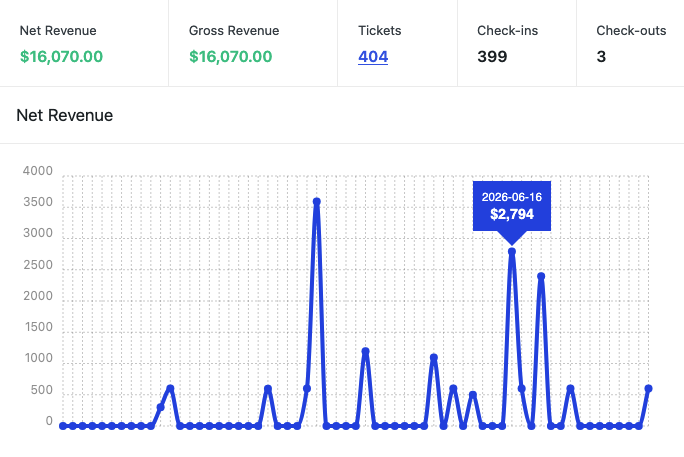
FooEvents Reports can provide event-level information including revenue, tickets sold, available tickets, and attendee check-ins.
WooCommerce reporting gives you a broader view of store activity, including ticket and merchandise sales.
For a multi-day festival, remember that the Weekend Pass and individual day passes are separate products. Their reports and attendee exports will therefore also be separate.
If your team needs one festival-wide attendee list, the attendee CSV files from each product can be combined securely for operational or reporting purposes.
These exports can contain ticket numbers, purchaser details, attendee information, ticket variations, custom attendee fields, billing information, and check-in data, so access should be restricted and unnecessary copies removed when they are no longer required.
Test your ticketing setup before the event
Testing individual settings is not enough. Run through the same workflows your customers and event staff will use.
Before ticket sales or gates open, test:
- Every ticket type and price.
- Weekend and individual day passes.
- General Admission and VIP stock allocations.
- Multiple attendees in a single order.
- Attendee fields and consent options.
- Discount codes.
- Every supported payment method.
- Orders containing tickets and merchandise.
- HTML and PDF ticket delivery.
- Tickets displayed on phones and printed tickets.
- Valid, canceled, unpaid, and previously checked-in tickets.
- Weekend Pass check-ins on each festival day.
- Several entrances operating simultaneously.
- Manual attendee searches.
- Offline Mode and reconnection.
- Box-office ticket sales.
- Payment terminals and printers.
Use the same devices, network, scanners, printers, and payment hardware that will be used at the event wherever possible.
A realistic rehearsal is much more likely to uncover problems than testing each part of the system in isolation.
Sell live music tickets on your own terms
A good concert or festival ticketing system needs to do far more than process payments.
It needs to manage ticket types, event dates, capacity, attendee information, ticket delivery, and what happens when large numbers of people arrive at the venue at the same time.
WordPress gives you control over the event website. WooCommerce provides the ecommerce foundation for products, payments, stock, and orders. FooEvents connects those sales to tickets, attendees, and event-day check-ins.
That combination can support everything from a one-night concert with General Admission and VIP tickets to a multi-day festival with Weekend Passes, individual day tickets, merchandise, multiple entrances, and on-site sales.
Most importantly, the ticket-buying experience, customer relationship, ticket revenue, and event data remain connected to your own website.
Ready to sell tickets for your next live music event?
Turn your WooCommerce website into a complete ticketing platform with FooEvents. Sell concert and festival tickets directly from your site, manage ticket types and capacity, collect attendee details, send branded tickets, check guests in at the venue, and handle on-site sales without paying a commission on every ticket sold.

 English
  German
  Dutch
Dutch  Spanish
  Italian
  Portuguese
  French
  Polish
  Greek
Greek