
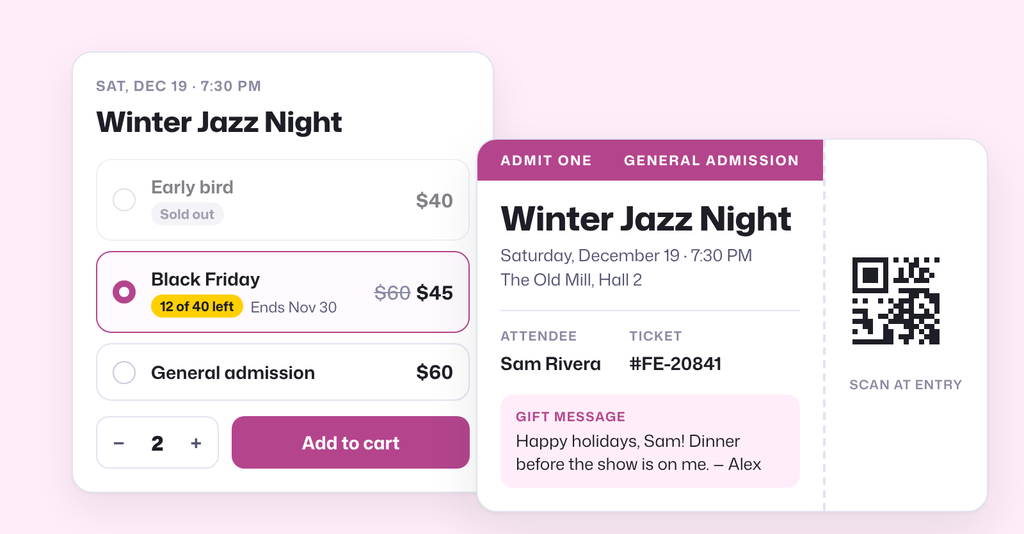
Holiday shoppers are looking for gifts that aren’t just another thing to unwrap. Deloitte’s 2026 Holiday Retail Survey found that half of shoppers plan to gift an experience this year, up from 47% in 2025 and 39% in 2024. Nearly one in five (19%) plan to give tickets to an event.
If you sell tickets on your own WooCommerce site, that’s demand you can capture. In this guide, we’ll show you how to sell event tickets as gifts, how to run a Black Friday sale without undercutting your event, and how to plan the weeks between now and the holidays.
Why sell event tickets as gifts?
- No shipping deadlines. Tickets arrive by email as soon as the order is complete, so you can keep selling to last-minute shoppers right up to Christmas Eve.
- A plan, not a product. The gift is the night out, the class or the weekend away, and many gift buyers will want to come along. Make it easy to buy two.
- Easy to pair with something physical. Deloitte found that 79% of shoppers planning to gift an experience also want to pair it with a physical item. A printed ticket in a card, or merchandise added in the same checkout, covers that.
Make your tickets gift-ready
With a gift, the person paying isn’t the person attending. These settings make that work smoothly, from checkout to the check-in desk.
Put the recipient’s name on the ticket
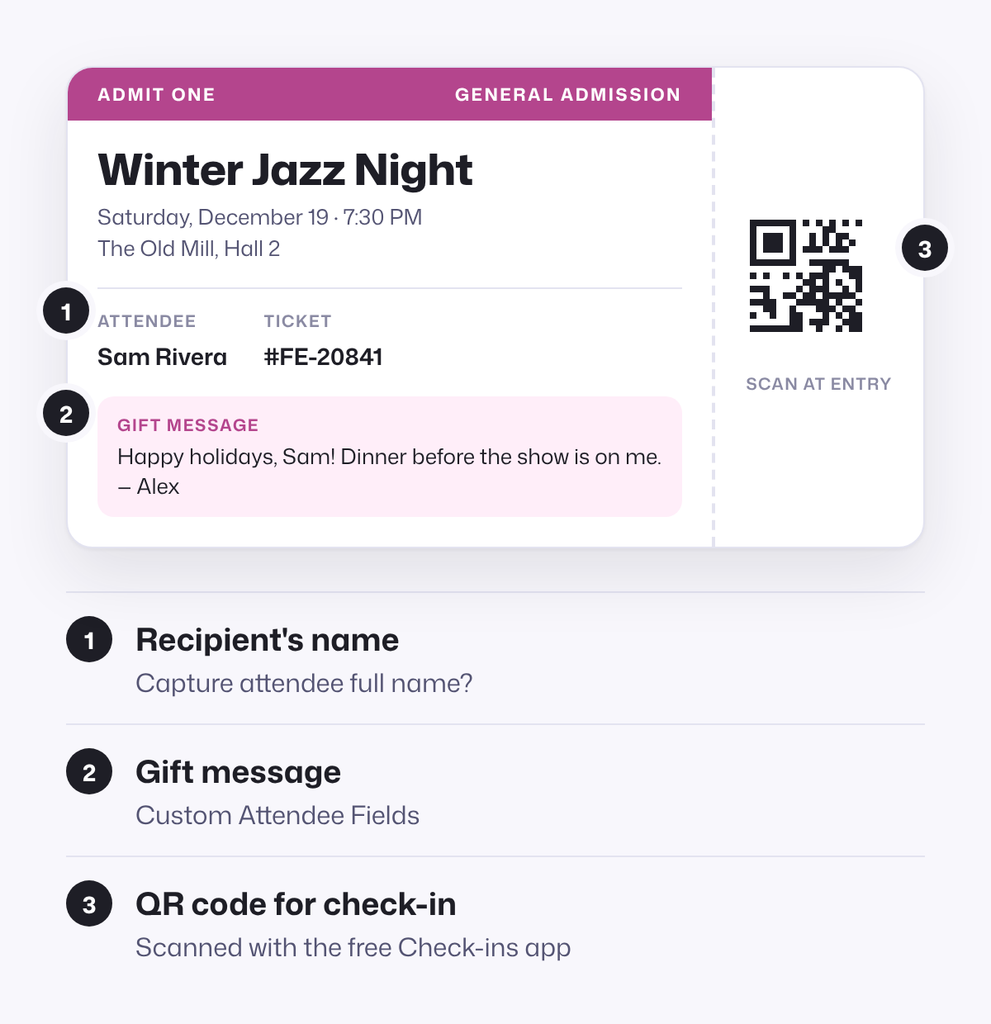
In your event’s Attendee Details settings, turn on Capture attendee full name?. Buyers then enter a name for each ticket at checkout, so the recipient’s name appears on the ticket and in your attendee list for check-in. To print it on the ticket, turn on Display purchaser or attendee details on ticket? in the product’s Ticket Settings.
Gift buyers don’t always know the recipient’s email address. If you only need a name at the door, consider leaving Capture attendee email address? off, so nobody gets stuck at checkout.
Let the buyer choose when to hand it over
By default, FooEvents emails tickets to the purchaser once the order is complete. For gifts, that’s usually what you want: the buyer decides when and how to give it.
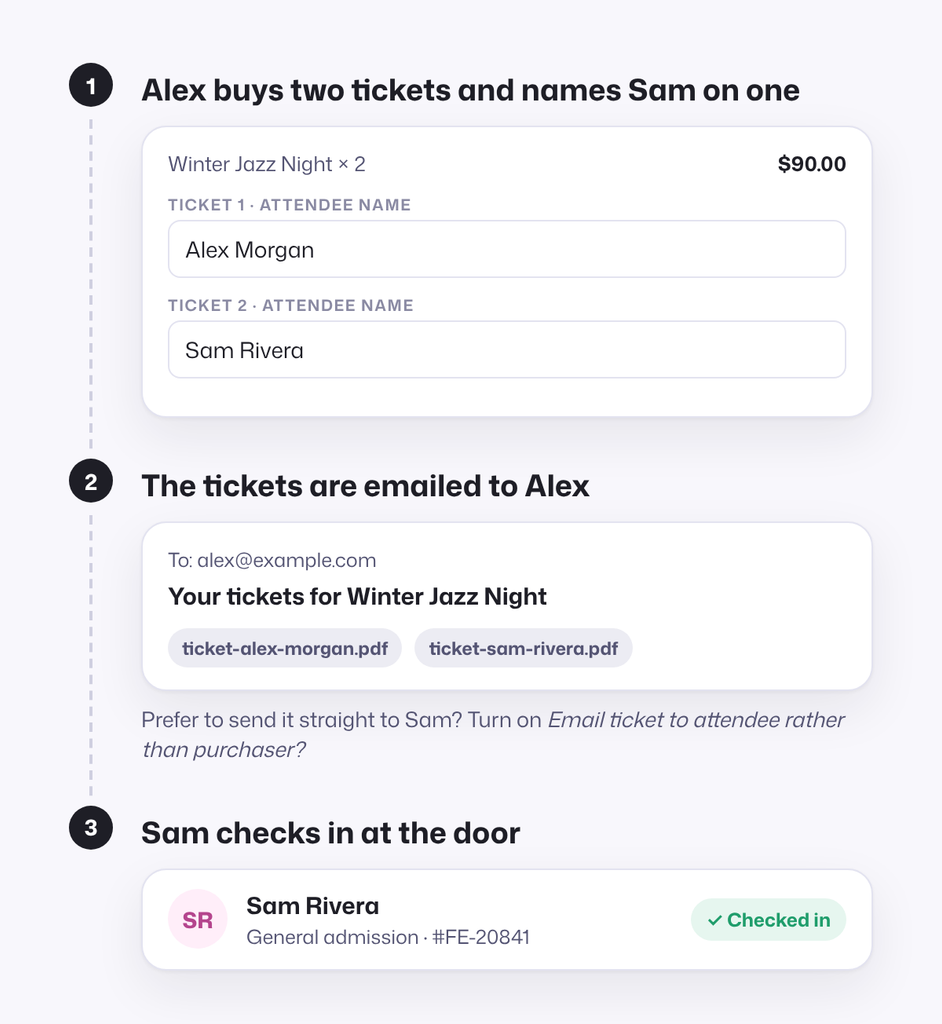
If you’d rather send tickets straight to each attendee, turn on Email ticket to attendee rather than purchaser? in the product’s Ticket Settings, along with Capture attendee email address?. Keep in mind that the ticket arrives as soon as the order is complete, so the recipient may see their gift before the holidays.
Give them something to wrap
Printable tickets are the simplest way to turn a digital ticket into a physical gift. FooEvents PDF Tickets adds a PDF version of each ticket to the ticket email, ready to print and slip into a card. A seasonal design helps too: our guide to creating a custom ticket theme walks through the template and CSS changes, and the same approach works for a winter or holiday look.
Because your ticket store runs on WooCommerce, you can also sell physical extras in the same checkout, such as merchandise, a printed program or a gift box. Add them as regular products and link them to your event as cross-sells, so they appear in the cart.
Add a personal gift message
With FooEvents Custom Attendee Fields, add a Text Area field called “Gift message” to your event. Then turn on Display custom attendee details on ticket? in Ticket Settings, and the message prints on the recipient’s ticket. Custom Attendee Fields is included in the Bookings, Premium and Point of Sale bundles.
Offer gift cards for undecided buyers
Some shoppers want to give your event but don’t know which date suits the recipient. A gift card extension, such as WooCommerce Gift Cards, lets them buy a balance that the recipient redeems at your checkout later. This works especially well for classes and tours sold with FooEvents Bookings, where a date or time slot is chosen at checkout.
Make gifting easy to find
Shoppers won’t think of your event as a gift unless you tell them. Add a short “Give it as a gift” note to your event pages, and create a holiday gift page that lists your upcoming events using FooEvents shortcodes. Link to it from your homepage and your holiday emails.
How to run a Black Friday ticket sale
Black Friday falls on November 27 this year, and Cyber Monday on November 30. Discounting tickets is different from discounting products: every seat you sell at a discount is a seat you can’t sell at full price later, and buyers who see a big sale every year learn to wait for it.
The answer is a sale that is limited, has a clear end date and feels like a one-off. Here are four ways to set one up in WooCommerce:
| Option | Limit | How it works |
|---|---|---|
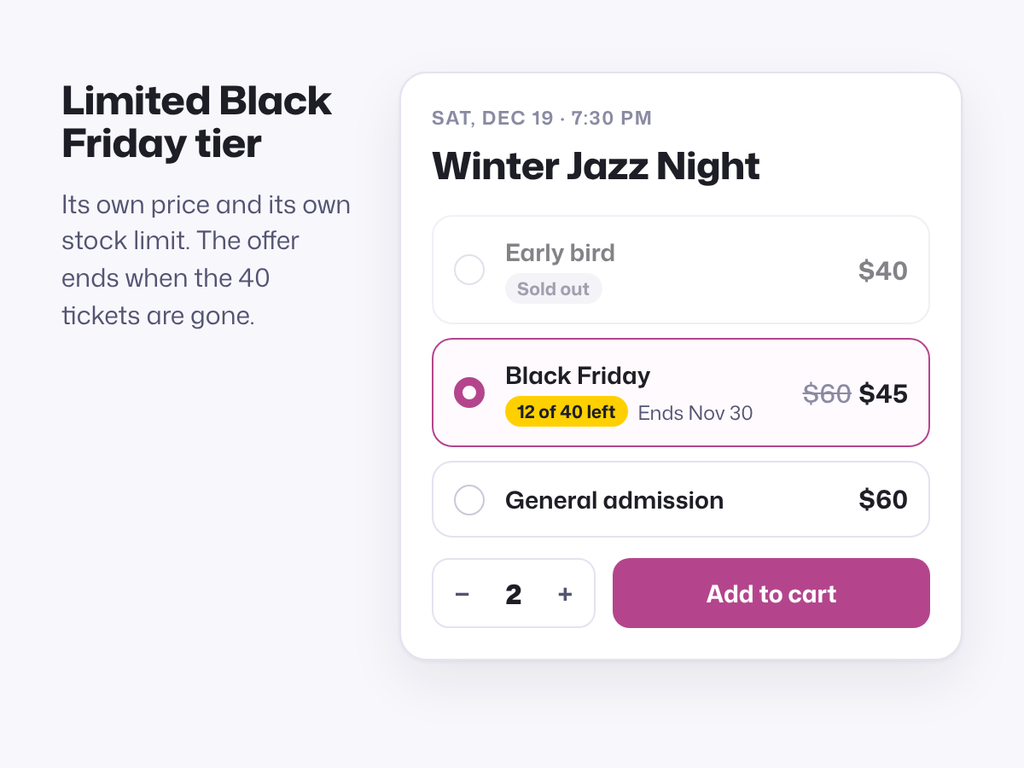
| Black Friday tier | Fixed stock | Add a “Black Friday” variation with its own price and a stock limit, such as 40 tickets. It sells out on its own, so the scarcity is real. See how to set up tiered pricing. |
| Scheduled sale | Set dates | Enter a sale price and use the Schedule option to start it on November 27 and end it after Cyber Monday. WooCommerce switches the price back automatically. |
| Coupon code | Capped uses | Create a coupon restricted to your event products, with an expiry date, a usage limit and Individual use only turned on, so it can’t be combined with other codes. |
| Added value | Full price | Keep your price and add something extra, such as a drink voucher, merchandise or a free upgrade. This protects the price for everyone who has already bought. |
Choosing the right option
- Selling to your mailing list? Use a coupon code. You can see exactly how many sales the email brought in.
- Want public urgency? Use a limited Black Friday tier and show the remaining stock on the event page.
- Already selling well? Add value instead of discounting.
Whichever you choose, keep your Black Friday price at or above your early-bird price. Early buyers committed first, and they shouldn’t feel they overpaid.
A quick example
Say you run a $60 workshop. A Black Friday tier of 40 tickets at $45 (25% off) gives up $600 compared with selling those tickets at full price. In return, people have a reason to buy now, and nobody can buy at that price once the 40 tickets are gone.
Get your site ready for the traffic
Sales spikes put pressure on your checkout. Before November 27, place a test order with the sale price or coupon applied, check the ticket email and confirm that attendee details come through correctly. Our guide to handling holiday registrations without website slowdowns covers hosting, caching rules and FooEvents settings for busy periods.
Your 2026 holiday ticket sales timeline
Here’s a week-by-week plan from now until the holidays. For ready-made email copy, adapt our early-bird campaign email templates.
| Date | Step | What to do |
|---|---|---|
| Nov 9–20 | Set up | Turn on your gift settings, create your Black Friday tier or coupon, and place a test order. |
| Nov 23 | Tease | Email your list with what the sale is, when it starts and how many tickets are available. |
| Nov 27 | Launch | Black Friday. The sale goes live. Send your launch email and post on social media in the morning. |
| Nov 30 | Last call | Cyber Monday. Send a reminder that the sale ends at midnight. |
| Dec 1–20 | Gift push | Switch your messaging to gifting: printable tickets, gift messages and gift cards. |
| Dec 21–24 | Last minute | Remind shoppers that tickets arrive instantly by email, so there’s no shipping deadline to miss. |
Deloitte’s survey found that planned shopping activity peaks in late November, with 77% of shoppers active, so Black Friday week deserves most of your effort.
Make the most of the holiday season
Holiday shoppers are already looking for experiences to give. With a few settings, your tickets become easy to give, and a well-planned Black Friday sale brings in early sales without undercutting your event.
Because FooEvents charges no commission or per-ticket fees, you keep every holiday sale, minus your payment gateway’s fee. See how that compares with Eventbrite.
Browse the FooEvents Demos to see the ticket buying experience, or compare FooEvents bundles to find the right fit.
Survey figures are from Deloitte’s 2026 Holiday Retail Survey, published October 15, 2026.

 English
 German
 Dutch
 Spanish
 Italian
 Portuguese
 French
 Polish
 Greek